
Test Results
Test Results is the record of every run that has completed. By default it is ordered by completion date, newest first, so a test you have just run is at the top.
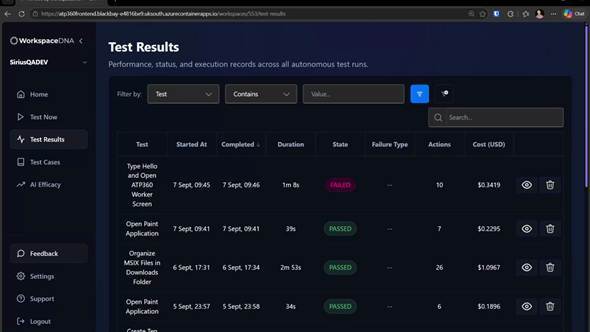
Figure 1 — The Test Results tab: one row per run, with its state, failure type, action count and cost.
|
Column |
What it tells you |
|
Test |
The name of the test case that was run. |
|
Started At / Completed |
When the run began and ended. Completed is the default sort. |
|
Duration |
How long the run took. |
|
State |
Passed or Failed, including results a human has overridden. |
|
Failure Type |
For failures, the category — for example Stopped Manually or Step Limit Reached. |
|
Actions |
How many individual actions the agent took. A rough measure of complexity. |
|
Cost (USD) |
The AI cost of the run. |
Opening a past run
Click the view (eye) icon on any row to reopen the run exactly as it appeared live — steps, screenshots, action log, result and cost. Nothing is summarised away. The view itself is described in ATP360 Running Tests, under Anatomy of a test run.
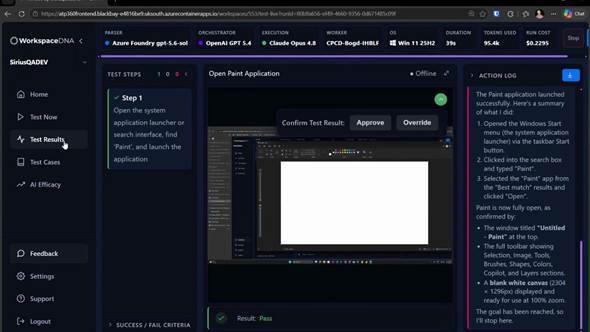
Figure 2 — A past run reopened from Test Results, with its full action log and result intact.
Filtering, searching and sorting
Three controls sit above the table and can be combined:
- Filter by — pick a field, an operator such as Contains, and a value. For example State contains Failed to look only at failures.
- Search — free text across the runs; searching notepad returns every Notepad test.
- Column headers — click any header to sort by it.
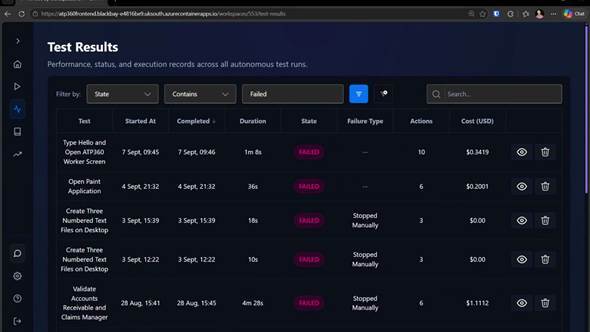
Figure 3 — Filtering by state to review failures only.
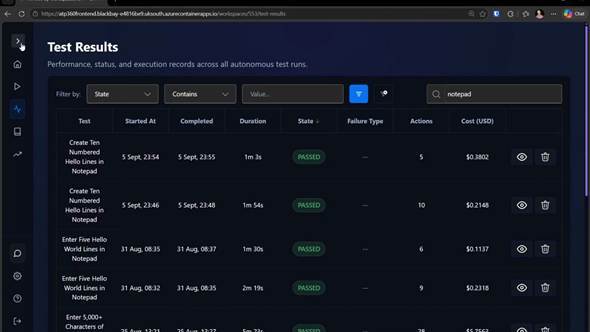
Figure 4 — A free-text search for “notepad”, which can be combined with the filter above it.
Test Cases
Test Cases is your reusable library. Whenever you pass a new test into Test Now, it is added here automatically — the point being that you compile a test once and re-run it whenever you need to.
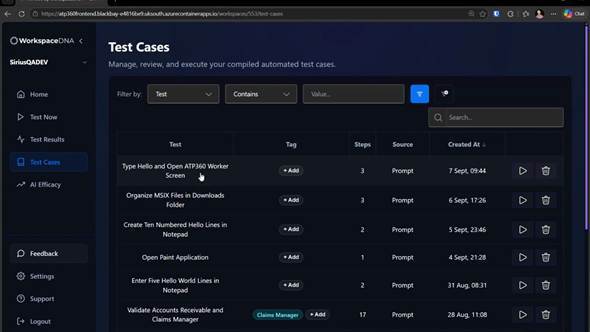
Figure 5 — The Test Cases tab, with tags, step count, source and creation date for every saved case.
|
Column |
What it tells you |
|
Test |
The test case name, generated when the case was compiled. |
|
Tag |
Any tags you have applied. Use + Add to tag a case from the list. |
|
Steps |
Number of steps — a quick signal of how involved the case is. |
|
Source |
Whether it came from a prompt, a document or a video. |
|
Created At |
When the case was compiled. |
Looking inside a test case
Click a test case to see each step: the action to be taken and the expected outcome. This is the same structure the orchestrator works from at run time.
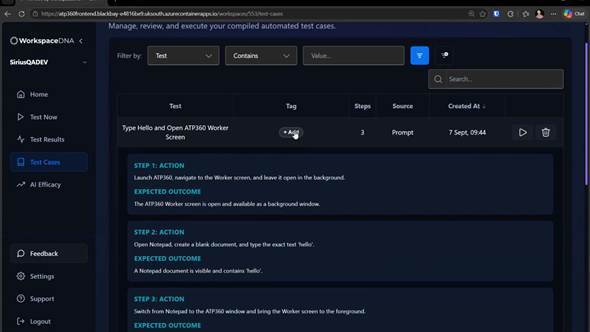
Figure 6 — Expanding a test case shows every step’s action and its expected outcome.
Tagging and filtering
Tags make a growing library searchable. Start typing in the tag box and ATP360 offers existing tags as you go, or lets you create a new one; a case can carry several. Then use Filter by > Tag to narrow the list — useful for grouping everything that belongs to one application or one release.
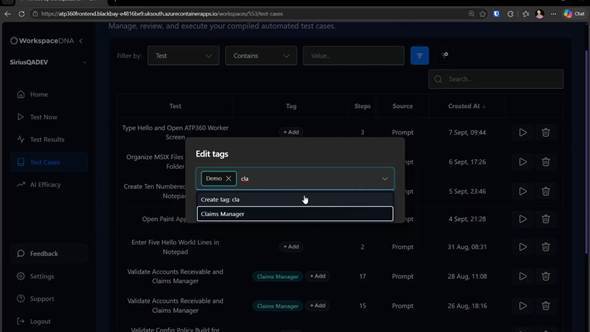
Figure 7 — Adding tags to a test case. Existing tags are suggested as you type; anything new can be created on the spot.
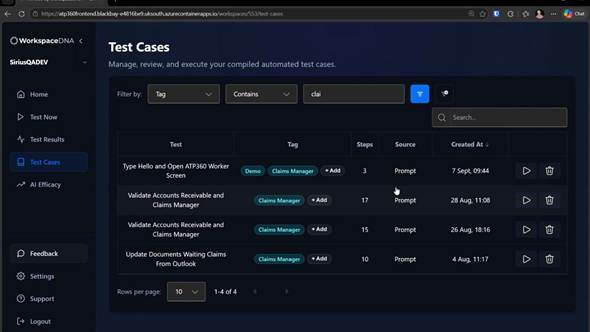
Figure 8 — Filtering the library by tag.
Re-running a saved test case
Click the play icon on a row. You are taken back to Test Now with the test steps already provided, so you can pick a worker and any pipeline changes and run it again.
|
Reuse saves tokens: re-running a saved case goes straight to the orchestrator, so you never pay to parse the same document, video or prompt twice. |
Auditing and AI governance
Letting an AI decide whether an application works is only defensible if you can answer three questions afterwards: what did it actually do, on what basis did it reach its verdict, and did a human agree? ATP360 is built to answer all three, and the AI Efficacy tab is where the answers are managed.
The governance model has four parts:
- Evidence — every run keeps its action log, its per-step screenshots and a click-and-keystroke level export, so what happened is a matter of record rather than recollection.
- Attribution — the run records which engines and models produced the result, along with duration, tokens and cost.
- Human sign-off — no verdict is final until a person approves it or overrides it, and runs awaiting that decision are listed until they get it.
- A durable override record — where a human disagreed, both verdicts are kept, with the reason and the reviewer’s notes.
The efficacy charts
The two charts at the top of the tab track the override rate and the review rate over the selected period. Read together they answer the question an auditor is most likely to ask: how often is the AI wrong, and are the results actually being reviewed? A rising override rate is a signal to look at the tests and the models; a review rate that lags behind means verdicts are accumulating without human sign-off.
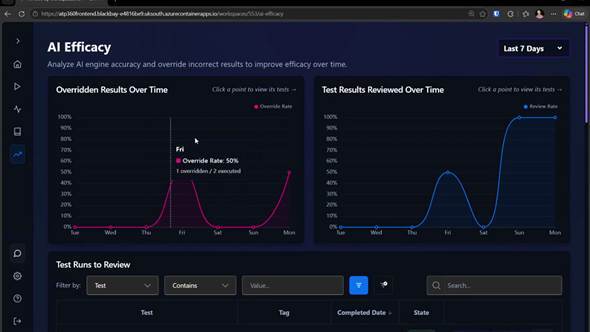
Figure 9 — Override rate and review rate over the selected period, with per-point detail on hover.
The time range picker at the top right changes the window both charts cover.
Reviewing runs
Keeping a human in the loop is not a one-off gate at the end — it is expected at multiple points across the life of a test case. Test Runs to Review lists completed runs nobody has signed off yet. Each row offers Approve, Override, and a view icon.
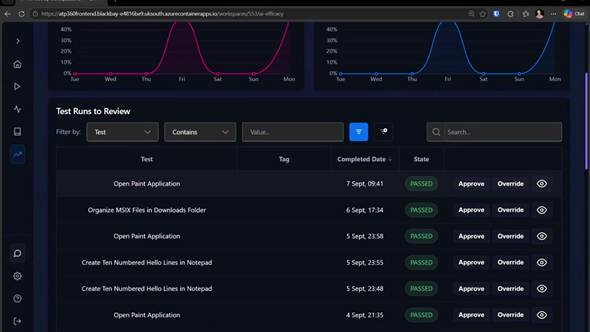
Figure 10 — Runs waiting for review, each with Approve and Override.
- If you watched the run and know it was right, Approve it. You are asked to confirm, and the run drops off the list.
- If you do not remember it, open it with the view icon first: click through the action log and the screenshots to see what the agent actually did, then approve or override.
- Override where the verdict was wrong. Record a reason and write notes that would make sense to someone reading them months later — they are the explanation of record.
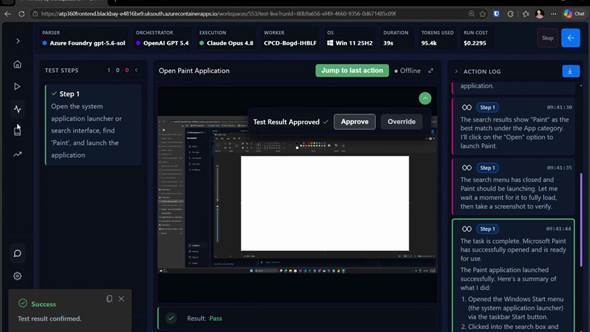
Figure 11 — Reviewing a run before signing it off. The action log carries the screenshots taken at each step.
|
Approving is a decision, not a formality: approval is what turns an AI verdict into an accepted result. Signing off a run you have not looked at removes the very control that makes the verdict defensible. |
The override record
Everything you have overridden is recorded at the bottom of the tab. This table is the audit record: it shows where the AI was wrong, what a human decided instead, and why.
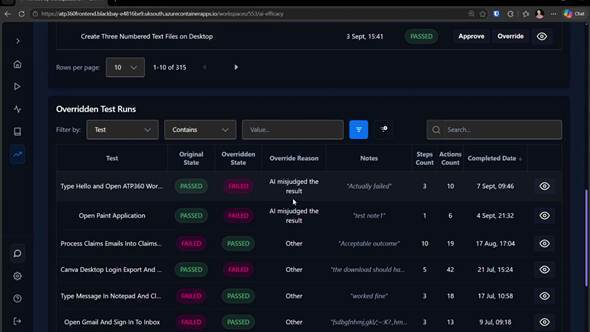
Figure 12 — The Overridden Test Runs table — what the AI said, what you changed it to, and why.
|
Column |
What it tells you |
|
Original State / Overridden State |
The AI’s verdict and the verdict you replaced it with. |
|
Override Reason |
The reason you selected from the drop-down. |
|
Notes |
Your free-text explanation of the problem. |
|
Steps Count / Actions Count |
The size of the run. The more actions a test takes, the more complex it is — and the more likely it is to need overriding. |
|
Completed Date |
When the run finished. |
Any of these runs can be reopened at any time, with its evidence intact.
The wider governance picture
Three controls that support all of this are configured by an administrator rather than here, and are covered in the ATP360 Administration Guide:
- Secrets — credentials are held in Azure Key Vault and inserted by deterministic automation, so no AI engine ever sees a password. The Stored Secrets tab records who created each one and when it changed.
- Gating — a second, smaller model can double-check that the actions taken match the step that was asked for, which is the guard against an agent heading off in its own direction.
- Telemetry — what, if anything, leaves your tenant. Override data can be used to improve ATP360, and the level you set determines how much of it is shared; Off sends nothing at all.
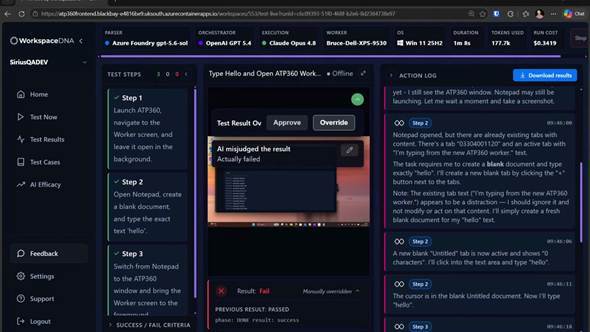
Figure 13 — The status bar and Download results — the evidence any audit of a run starts from.
Getting help
If something in ATP360 is not covered here, start with the knowledge base — reachable from Support in the navigation — which carries the deployment and architecture guides, the list of known and fixed issues and an explanation of the test failure types. The other documents in this set are listed on the title page.
If you still cannot find the answer, contact WorkspaceDNA technical support at technicalsupport@workspacedna.com.
Glossary
|
Term |
Meaning |
|
CUA |
Computer-using agent. The AI that actually drives the desktop — moving the pointer, clicking and typing. |
|
CUA worker |
A Windows machine, physical or virtual, running the ATP360 Worker agent, on which tests execute. |
|
Parser |
Layer 1 of the pipeline. Turns documents, videos and prompts into structured test cases. |
|
Orchestrator |
Layer 2. Decides which actions are needed to satisfy each test step. |
|
Execution |
Layer 3. Drives the CUA on the worker, turning intended actions into real clicks and keystrokes. |
|
Test case |
A reusable, structured set of steps with expected outcomes and pass/fail criteria. |
|
Test run |
One execution of a test case on one worker, with its own result, cost and audit trail. |
|
Step |
One instruction in a test case, with an action and an expected outcome. |
|
Action |
One thing the agent does — a click, a keystroke sequence, a screenshot. A step usually takes several. |
|
Turn |
One full cycle between the orchestrator and the CUA worker. |
|
Gate |
A check by a second, smaller model that the actions taken match the step requested. |
|
Override |
A human changing the AI’s verdict on a run, with a reason and notes. |
|
Pairing key |
The one-time key that binds a newly installed worker to your workspace. |
|
Secret |
A credential held in Azure Key Vault and inserted into a test deterministically, never seen by an AI engine. |