
In this article
-
When will, and won't, an Automatic Retry Sequence be created
-
Configuring Automatic Retry Sequence settings and Error patterns
What is an Automatic Retry Sequence
An Automatic Retry Sequence is created and executed when a sequence fails for a reason that can reasonably assumed to be transient, i.e. if you try it again it will probably work. By automatically rerunning sequences in such circumstances the automated pipeline can continue to run and complete without the need for manual intervention for anomalous issues.
The default configuration is to retry a sequence 3 times with an incrementally longer delay between retries:
-
The first retry is after 5 minutes
-
The second retry, if needed, 15 minutes after the the first retry sequence ends
-
And the final retry 45 minutes after the second retry ends.
You can configure how many times and how often to retry a sequence, you can also configure what circumstances will trigger an Automatic Retry Sequence. If you don't want sequences to automatically retry the feature can be turned off.
Automatic Retry Sequences will appear in the Sequence history as separate sequences and include "Automatic Retry x" in the Sequence name, where "x" is the number of the retry attempt, starting at 1.
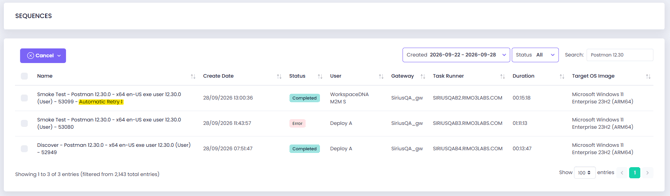
When will, and won't, an Automatic Retry Sequence be created
An Automatic Retry sequence is created when a sequence fails and the "ERROR Reason" in the failed sequence step matched a configured retryable error pattern.
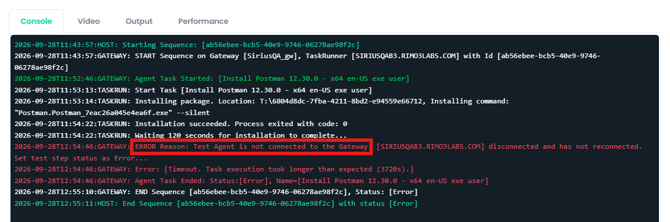
The following error patterns are configured by default:
- Error occurred while trying to provision VM - this covers a number of transient provisioning errors including, but not limited, a temporary shortfall in available cores or IP addresses.
- An error occurred while trying to deprovision VM - this covers the rare times an error is returned when deprovisioning a device the sequence is retried to ensure an overall result of pass so you don't have to investigate issues for an otherwise successful result.
- Test Agent is not connected to the Gateway - when the task runner agent looses connectivity to the Gateway, and therefore would ne unable to report the sequence results, this pattern triggers the sequence again to ensure a complete set of results.
Automatic Retry Sequences are not created when any sequence or automatic retry sequence fails for a reason that does not match a configured error pattern, examples include:
- Import & wrap with PSADT sequences - these sequences are not automatically retried in the event of on error, even if it matches an error pattern. Imports should be triggered again after addressing the reported error.
- Timeout. Task execution took longer than expected - this error typically occurs when an installation is not unattended and therefore times out waiting for user interaction, or an installation is taking longer than the configured install/uninstall timeout. Retrying such sequences without first amending the install command, or the install/uninstall timeout, is unlikely to result in a different result.
Adding a timeout custom error pattern is not reccommended.
- Application install failure - if an application fails to install during Discovery or a Smoke Test this is considered a legitimate result and an Automatic Retry Sequence will not be created.
In certain circumstances adding an error pattern to retry sequences could be feasible in the event of a known intermittent application install failure, an intermittent export to Intune error, or intermittent Modernization error. It is recommend you consult with WorkspaceDNA support on technicalsupport@workspacedna.com before doing so.
- Smoke test step failure - if an application fails to launch or returns an error when launched this too is considered a legitimate result and there is no reason to expect retrying the sequence will result in a more favourable outcome.
If an automatic retry sequence is manually cancelled no additional retry sequences will be created.
Configuring Automatic Retry Sequence settings and Error patterns
You can configure how many times a sequence will be automatically retried, as well as how long to wait between retries. You can also add custom error patterns that will be used to determine whether or not to retry a sequence. If you don't want sequences to automatically retry the feature can be turned off.
- In your workspace navigate to Extend Menu → Settings
- Click on Sequence Retry
Turn off Automatic Sequence Retries
-
On the Sequence Retry tab toggle the Enabled state to Disabled
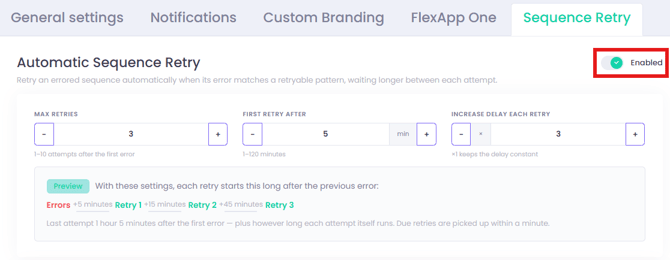
- Click on Save Changes to set the new feature state
- Once disable the feature settings will be greyed out and new Automatic Retry Sequences won't be created
Configuring Automatic Retry Sequence settings
The Automatic Retry Sequence feature uses a multiplier to wait incrementally longer between retries. The default configuration is to retry 3 times and wait 5 minutes before attempting the first retry with a multiplier of 3 for the second and third retries. Therefore waiting 15 minutes after the first retry before attempting the second retry, if necessary, and finally waiting 45 minutes before attempting the 3rd retry.
-
Max Retries (integer, 1-10) - the number retries to attempt after the first error.
- First retry after (integer, 1-20) - the number of minutes to wait before attempting the first retry
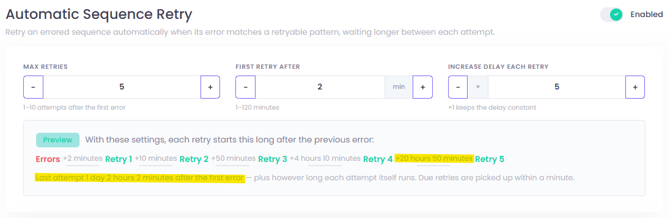
- Increase delay each retry (integer, 1-10) - the multiplier used to increase the previous delay by, e.g. if the initial retry delay is 5mins and the multiplier is 3, the second retry delay will be 5mins x 3 → 15mins, and the third retry delay will be 15mins x 3 → 45 mins.
To keep the delay between retries constant use a multiplier of 1.
- Click on Save Changes to set the new retry timeline
The new timeline will only affect new sequences, not already running and queued sequences.
Each subsequent retry occurs only if the previous attempt fails, so the delays add up. With the default settings, the third retry starts no sooner than 1 hour and 5 minutes after the initial sequence fails (5 + 15 + 45 minutes). It may start later because this minimum excludes the time needed to provision a task runner, install and test the application, and wait for an available task runner if the retry is queued.
A timeline for the configured settings is displayed on the Sequence Retry settings page:
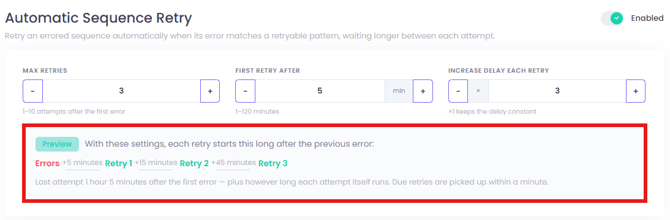
Pay attention to the timeline preview when making changes as even small changes to the multiplier can have significant effects on the timeline, for example, attempting 5 retries, the first after only 2 minutes, with a multiplier of 5 would result in a nearly 21hr delay between the 4th and 5th retries:
Adding a custom Error Pattern
- Before adding a new retry pattern first identify the error text too look for.
- In the Sequence console any output in red can be used in an error pattern.
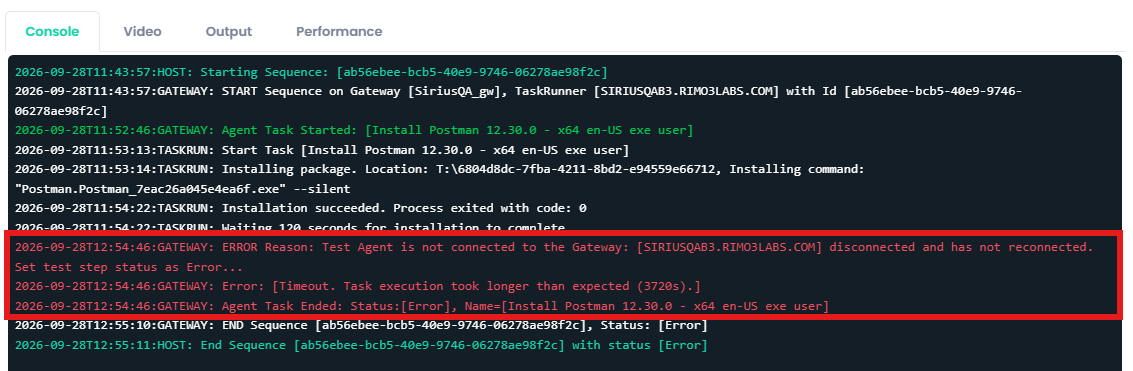
Avoid including details unique to one failure, such as a specific Task Runner name, in the error pattern. Otherwise, the pattern may not match other instances of the same error.
- On the Sequence Retry tab scroll to the end of the list of error patterns if necessary
- Click into the text box and type, or paste, the new error pattern text.
- Click on Add pattern
- You can add additional error patterns if necessary
- Click on Save changes to save the newly added error pattern(s)
The new error patterns will only apply to new sequences, not already running and queued sequences.