
This article explains how to export applications from your workspace to SCCM.
To discuss getting access to the Export to SCCM preview contact you WorkspaceDNA Account Manager.
In this article
- Prerequisites
- What can be exported to SCCM
- Export applications to SCCM
- Review the export results
- Next steps & further reading
Prerequisites
Before you export applications to SCCM, make sure you have the following:
- An SCCM server configured in Integrations. As part of this configuration, you must specify a content location, exported packages are written to this location. For setup instructions, see: Configuring Export to SCCM.
Only SCCM servers that have a content share location specified are available as export targets. If a server is missing from the list when you export, check its configuration in Integrations.
What can be exported to SCCM
An application must meet the following criteria before it can be exported to SCCM:
- It must have an Install Command
- It must have source files
- It must only use support Exit Code type: Success, Failure, FastRetry, HardReboot and SoftReboot
- It must have at least one File/Folder, Registry, or Windows Installer Detection Rule configured
The following package types and configurations are currently not supported for export to SCCM:
- Packages without an install command (MSIX/App Volumes/Flex AppOne/WPM)
- Packages with a Script Detection Rule
- Packages with Detection Rules that use an OR operand
- Packages with Detection Rules that use and unsupported operator:
- Between
- One of
- None of
- Begins with
- Does not begin with
- Ends with
- Does not end with
- Contains
- Does not contain
Export applications to SCCM
To export applications to SCCM:
- Go to the Overview dashboard.
- Select the applications you want to export.
- Click the Export menu.
- Select Apps to Config Manager.
- Choose the Config Manager server you want to export to.
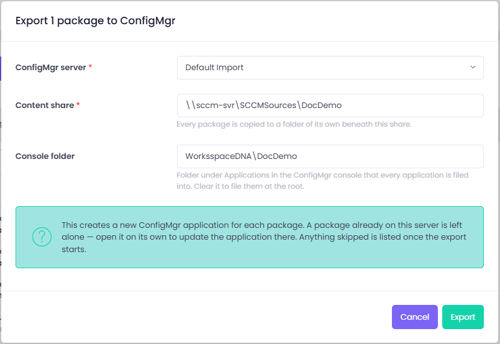
- Review the content share and console folder that are configured for the selected server.
- Optional: Choose a different content share for this export.
Application package source files are exported to ".\<Package Display Name>\<Version>" under the specified folder. If the folder already exists a new folder with (2), (3), etc. appended is created. - Optional: Choose a different console folder for this export.
When you change the content share or console folder in steps 7 and 8, the change applies only to the applications in this export. The default settings for the server in Integrations stay the same
- Click Export.
Dependencies are not automatically exported or associated with each other In SCCM after export.
Review the export results
After you click Export, the results depend on whether each application can be exported.
Applications that can't be exported
If any of the selected applications can't be exported, they are listed in a pop-up.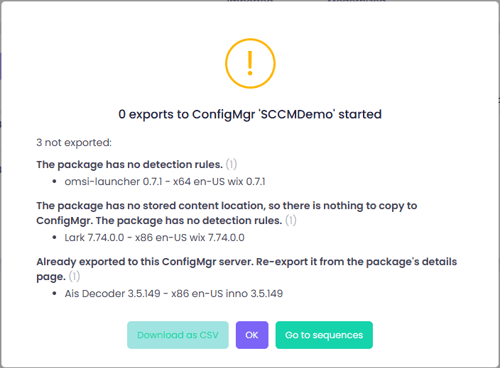
-
Review the list of applications in the pop-up.
-
Click on Download as CSV to save a copy of the results.
-
An application may be unsuitable for export for any for the following reasons:
-
Application package was not found.
-
A '<MSIX/App-V/App Volumes/FlexApp One/WPM>' package has no install command to run.
-
The package has no stored content location, so there is nothing to copy to ConfigMgr.
-
The package has no install command.
-
The package has no uninstall command.
-
The package's stored exit codes could not be read.
-
Exit code <code> has an unrecognised type '<type>'.
-
Exit code <code> has type '<type>', which ConfigMgr has no equivalent for. ConfigMgr supports Success, Failure, FastRetry, HardReboot and SoftReboot.
-
The package has no detection rules.
-
The package's detection rules use an OR operator. The original rule structure is not preserved when importing, so it cannot be reproduced in ConfigMgr without changing what the rules mean.
-
The package has a script detection rule, which cannot yet be exported to ConfigMgr.
The package has a detection rule of an unsupported type '<type>'.
-
A registry|file system detection rule compares against a list of values, which cannot be exported to ConfigMgr.
-
A registry|file system|product code detection rule uses an unsupported detection method '<operation>'.
-
A registry|file system|product code detection rule uses an unsupported operator '<operator>'.
-
Applications that are exported
A Sequence is created for each application that is suitable for export.
To review the jobs:
- Go to the Sequences page.
- Search for the Sequence by Display Name or "Export - ConfigMgr"
Each exported application has its own job, so you can track the progress of each application separately.