
In this article
Enabling Change360 to provision Cloud PCs for me
To enable Change360 to provision Cloud PCs for you you will need to:
- Give the Windows 365 Application permission to create an Azure Network Connection for the Gateway's Vnet
- Grant the WorkspaceDNA App Registration permissions to create and manage Cloud PCs in youe Microsoft 365 Tenant
Granting permissions for Azure Network Connection
Change360 creates an Azure Network Connection that allows Cloud PCs to be provisioned and communicate with the WorkspaceDNA Gateway. For this connection to function, the Windows 365 service must have the following two permissions granted in your subscription as per the steps below.
-
Windows 365 Network Interface Contributor on the resource group that hosts the Gateway's Vnet
- Windows 365 Network User on the Gateway's Vnet
If these permissions are missing, the connection will not work, and Cloud PCs cannot be provisioned or communicate with the Gateway.
Windows 365 Network Interface Contributor
- In the Azure Portal browse to the resource group that hosts the VNet to which the Change360 Gateway device is attached.
- Click on Access control (IAM)
- Click on Add and select Add role assignment
- On the Role tab filter for Windows 365 and select Windows 365 Network Interface Contributor, then click Next
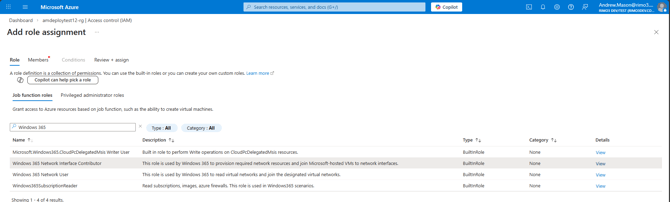
- On the Members tab ensure User, group, or service principal is selected and click on Select members.
- On the Select members flyout search for and select Windows 365, click on Select
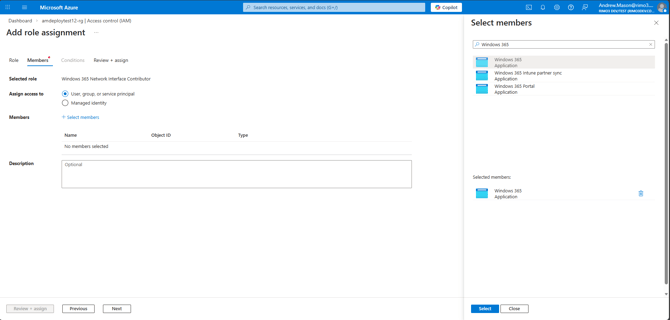
- Click on Next and on the Review + Assign tab click on Review + assign
Windows 365 Network User
- Once the role has been successfully applied to the resource group, browse to the Vnet to which the Change360 Gateway is attached
- Click on Access control (IAM)
- Click on Add and select Add role assignment
- Click on the Role tab filter for Windows 365 and select Windows 365 Network User, then click Next
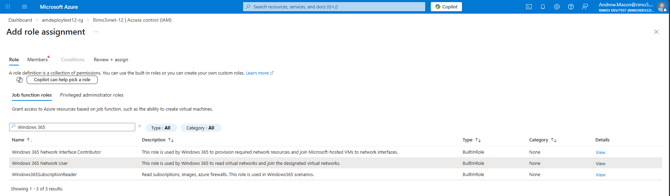
- On the Members tab ensure User, group, or service principal is selected and click on Select members.
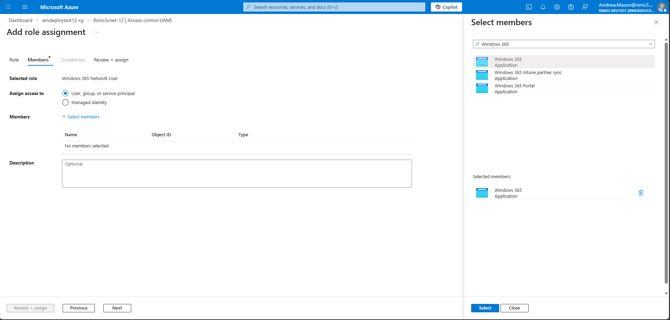
- On the Select members flyout search for and select Windows 365, click on Select
- Click on Next and on the Review + Assign tab click on Review + assign
Windows 365 now has permissions to create an Azure Network Connection for the Gateway's Vnet.
Granting Cloud PC permissions to Change360
Change360 will automatically request the required permissions when selecting to allow Cloud PCs to be provisioned for you.
- On the Cloud PC Management page click on Grant Permissions

On the Connect to Windows 365 popup you can review the required permissions and click Continue to Microsoft when ready.
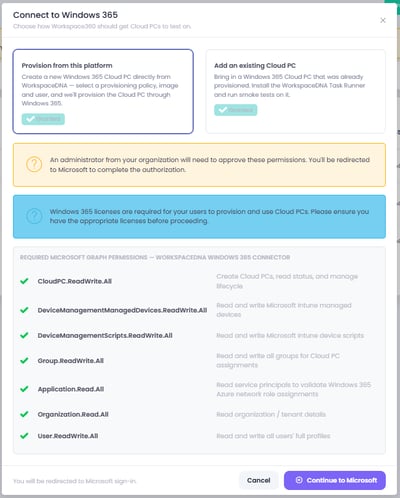
You need to be Global Admin in your Microsoft 365 tenant to grant these permissions. If you are not a Global Admin and need to request these permissions, you will not be able to add or provision a Cloud PC Task Runner until they have been granted.
If no one with Global Admin rights has access to the Change360 workspace you can send them this Url instead:
https://login.microsoftonline.com/organizations/v2.0/adminconsent?client_id=b2e8c112-d91b-486e-bb11-d2e866dd42c2&scope=https%3A%2F%2Fgraph.microsoft.com%2F.default&redirect_uri=https%3A%2F%2Frimo3cloud.com%2FCloudPcFeatureEnablement%2FConsentCallback
- Once you have accepted the requested permissions you will be returned to the Cloud PC Management page. When the permissions have taken effect the Provision new button will be enabled. If the feature is enabled but the Provision new button is not active then it is likely that the Gateway for your workspace is offline.

If you had to request a Global Admin to grant the permissions or the Provision new button hasn't changed to enabled you can refresh the Cloud PC Management screen to recheck the permissions.
Enabling Change360 to link to existing Cloud PCs
Change360 will automatically request the required permissions when slecting to link your existing Cloud PCs.
- On the Cloud PC Management page click on Grant Permissions

- On the Connect to Windows 365 popup you can review the required permissions and click Continue to Microsoft when ready.
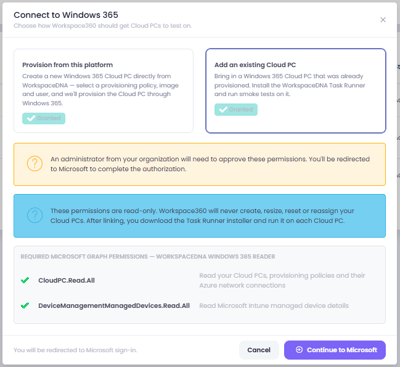
You need to be Global Admin in your Microsoft 365 tenant to grant these permissions. If you are not a Global Admin and need to request these permissions, you will not be able to add or provision a Cloud PC Task Runner until they have been granted.
If no one with Global Admin rights has access to the Change360 workspace you can send them this Url instead:
https://login.microsoftonline.com/organizations/v2.0/adminconsent?client_id=3181b058-7986-4f91-961b-70f333f11d5a&scope=https%3A%2F%2Fgraph.microsoft.com%2F.default&redirect_uri=https%3A%2F%2Frimo3cloud.com%2FCloudPcFeatureEnablement%2FConsentCallback
- Once you have accepted the requested permissions you will be returned to the Cloud PC Management page. When the permissions have taken effect the Link Cloud PCs button will be enabled. If the feature is enabled but the Link Cloud PCs button is not active then it is likely that the Gateway for your workspace is offline.

If you had to request a Global Admin to grant the permissions or the Link Cloud PCs button hasn't changed to enabled you can refresh the Cloud PC Management screen to recheck the permissions.