
In this article
- Overview
- Opening Pipeline History
- Reading the pipeline graph
- Using the pipeline executions table
- Sequence options
- Retrying a sequence or pipeline
- Retrying an export to Intune
- Investigating a failed pipeline
- Navigating a complex history
- Following a converted package
Overview
Pipeline History gives you a visual record of every sequence an application has run in your Change360 workspace. Instead of piecing together individual sequence pages, you can use Pipeline History to:
- Review current and previous pipeline executions
- See the status of individual sequence steps
- Identify failures, cancellations, and automatic retries
- Understand when a pipeline branched into a new execution
- Open sequence and run details
- Retry an individual sequence
- Rerun a pipeline from a selected sequence
- Navigate to the Pipeline History of a converted application
Opening Pipeline History
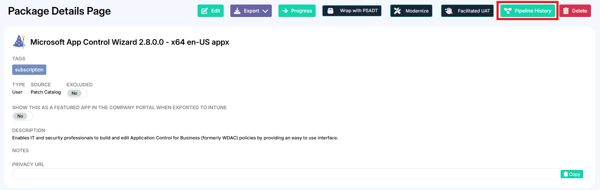
- Open an application from any of the dashboards.
- Click Pipeline History.
-
The unified pipeline graph loads, showing the sequences the application has completed.
Reading the pipeline graph
Each node on the graph represents a sequence that has been executed for the application.
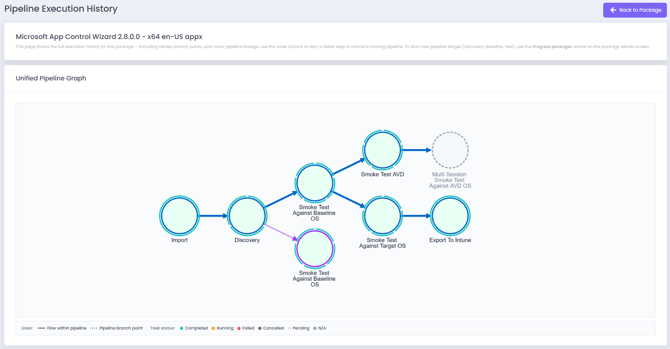
The ring around each sequence is divided into segments, one per step in that sequence. Each segment is coloured by result:
-
Green - Step was successful
-
Amber - Step is still running
-
Red - Step failed
-
Grey - Step or sequence was cancelled
- A solid connector between sequences shows the original pipeline.
- A dotted connector marks a branching point where a new pipeline was started — for example, when an application is retested after an operating system change, or when an application is modernised or wrapped.
Using the pipeline executions table
Below the graph is a table of pipeline executions. Each execution is colour-coded to match its sequences on the graph, making it easier to tell the different runs apart.

Click Run details next to an execution to see an overview of that pipeline (see Sequence options for what's included).
Sequence options
Left-click a sequence on the graph to open its context menu.
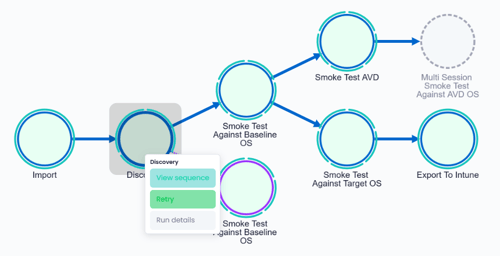
- View sequence — opens the sequence details page in a new tab.
- Retry — reruns the sequence or the pipeline (see Retrying a sequence or pipeline).
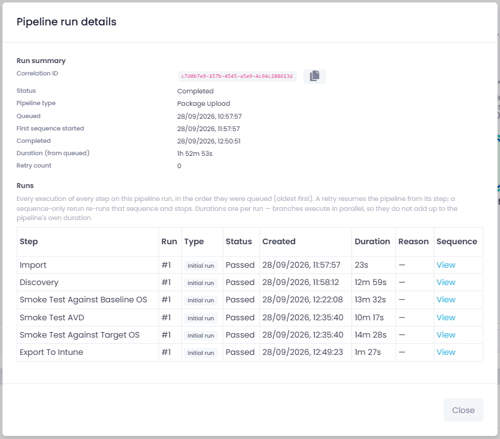
- Run details — opens a pop-up with an overview of the pipeline. This is the same information shown when you click Run details in the executions table.
For each sequence in the pipeline, Run details shows:
- Whether it was an initial run or an automatic retry
- The number of automatic retries
- When it was created
- Its runtime
- Its result
- Any errors, if it failed
- A link to the sequence details page
Retrying a sequence or pipeline
- Left-click the sequence and choose Retry.
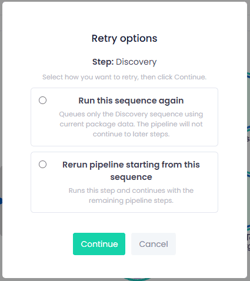
- Choose one of the following:
- Run the selected sequence again — reruns only that sequence.
- Rerun the pipeline from the selected sequence — reruns that sequence and every step that follows it in the original pipeline.
Rerunning the pipeline from the selected sequence is usually the right choice when a sequence failed and the steps after it never ran. The new pipeline completes with the same outcome as the original.
For example, if a pipeline was configured to export to a specific Intune instance using an Intune deployment template, but the Discovery step failed, and you rerun the pipeline from Discovery, then when the pipeline gets to the Export to Intune sequence it will run — exporting to the same Intune instance, using the same Intune deployment template as configured in the original pipeline.
Retrying an export to Intune
When you retry an Export to Intune sequence, you get two additional options alongside running the sequence again:
- Create a new Intune package - Creates a second application in Intune using the application's current configuration in Change360. The original Intune application is left as it is.
- Update the existing Intune package - Updates the application already in Intune with the application's current configuration in Change360.
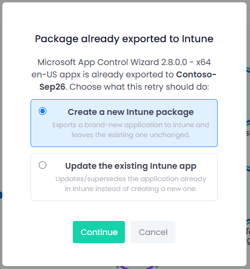
So, for example, if you change an application's install command in Change360 and then retry the export, and select:
- Create a new Intune package — you end up with two applications in Intune, each with a different install command.
- Update the existing Intune package — you end up with one application in Intune, now using the new install command.
Investigating a failed pipeline
If an error stops the pipeline, Pipeline History shows which later sequences did not run: they have no outer rings to show the results of the sequence steps. Furthermore the number of automatic sequence retries, if applicable, is shown on the failing sequence in the graph.
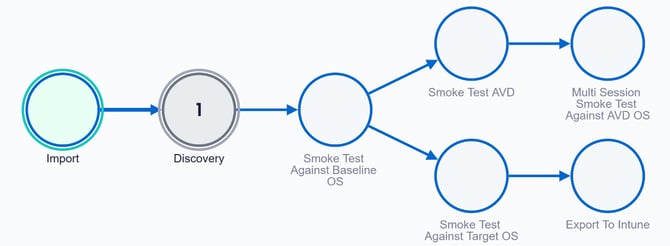
In this above example, Run details shows that:
- The import succeeded.
- The initial discovery run failed.
- The automatic retry (the second discovery run) was cancelled.
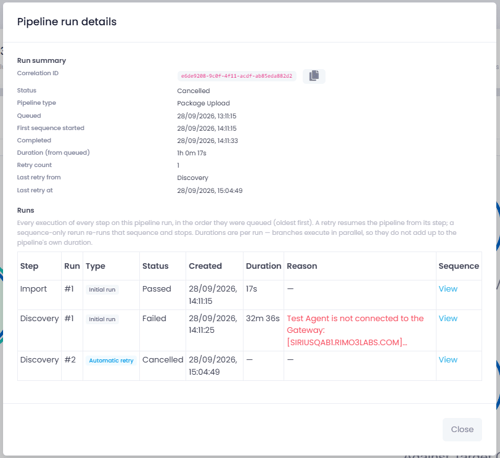
Because the steps after the discovery never ran, the right action here is to Retry the Discovery and rerun the pipeline from the selected sequence, so the full pipeline completes.
Navigating a complex history
Applications that have been retested, converted or exported several times can build up a large history.
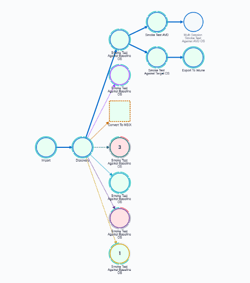
- Pipeline executions are arranged top to bottom, oldest to newest.
- To zoom in or out, use the mouse scroll wheel.
Following a converted package
If a pipeline converted the application (for example, to MSIX), you can jump straight to the converted application's history:
- Left-click the convert step on the graph.
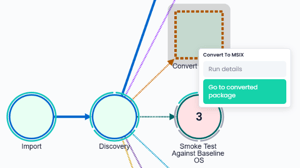
- Choose Go to converted package.
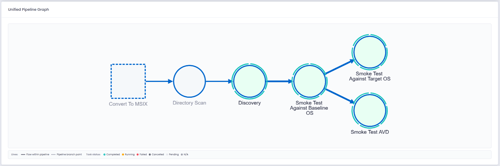
The pipeline history for the converted application opens in a new tab. It shows the conversion that started the pipeline, followed by the converted application's own sequences — such as Import, Discovery and Testing.