
Setup Connections to SCCM
Change360 enables you to create multiple connections to both SCCM and Intune, you can mark each with an identified friendly name.
To setup a connection to SCCM, ensure you set up line of sight to SCCM from the Change360 VNet. Provision an identity with the Read-Only Analyst role in SCCM that also has Read-Only Access to the source media folder.
For help setting up your connection to SCCM please see the following article.
Now, you can pass this information into the SCCM Connection API.
The script below references variables previously created in the following article.
$SCCM = @{ "password" = "Passowrd12345" "friendlyName" = "SCCM API Demo" "hostname" = "SCCMServer001" "username" = "SCCMReadOnlyAnalyst01" }$SCCMJSON = $SCCM | ConvertTo-Json$SCCMJSON$SCCMHeader = @{ Authorization = "Bearer $token" "Content-Type" = "application/json"}$SCCMParameters = @{ Method = "POST" Uri = "$($server_uri)/api/v2/sccm-servers" Headers = $SCCMHeader Body = $SCCMJSON}$result = Invoke-RestMethod @SCCMParameters# Assign the connection ID to a variable$SCCMID = $result.id |
WorkspaceDNA requires the connection ID to trigger the import of applications via the SCCM connection. This is why you assign the ID value from the result to a variable.
Run an import from SCCM
From here, pass this variable to the Import Applications API endpoint to start an import from SCCM.
# Trigger import from SCCM# SCCM Import Settings$SCCMSettings = @{ "recoverDeletedPackages" = "false" "timeoutInMinutes" = 20}$SCCMSettingsJSON = $SCCMSettings | ConvertTo-Json$SCCMSettingsJSON$SCCMSettingsHeader = @{ Authorization = "Bearer $token" "Content-Type" = "application/json" "Cache-control" = "no-cache"}$SCCMSettingsParameters = @{ Method = "POST" Uri = "$($server_uri)/api/v2/sccm-servers/$SCCMID/import-applications" Headers = $SCCMSettingsHeader Body = $SCCMSettingsJSON} |
The output provides a Sequence ID that tracks the import’s progress, either via the API or the console directly.
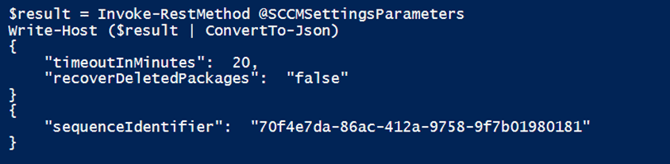
In <article> you use the “Sequences API” endpoint to track progress of an application going through the Change360 pipeline.
Setup Connections to Intune
WorkspaceDNA enables you to create multiple connections to both SCCM and Intune, you can mark each with an identified friendly name.
To set up the connection to Intune, you must first create an App Registration within your Entra ID Admin Centre. The App Registration requires admin approval of the required Graph API permissions to create Intune Application Objects, (i.e., scoping the registration using least privilege methodology.):
- DeviceManagementApp.ReadWrite.All
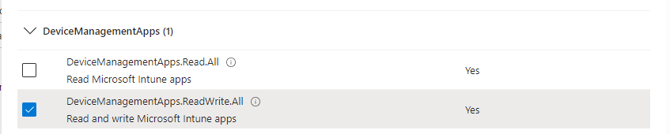
To create the Intune connection in WorkspaceDNA you must pass the following:
- Tenant ID
- Application (Client) ID
- Client Secret
# Create Intune Connection$Intune = @{ "friendlyName" = "Intune Connection API Demo" "azureTenantId" = "b1aXXXX-XXXXXXXXXXXXX-XXXXXX6a0b2" "azureClientId" = "812XXXXXXXXXXXXXXXXXXXXXXXXXXX84a0" "azureClientSecret" = "d3KXXXXXXXXXXXXXXXXXXXXXXXXXXXXmP"}$IntuneJSON = $Intune | ConvertTo-Json$IntuneJSON$IntuneHeader = @{ Authorization = "Bearer $token" "Content-Type" = "application/json"}$IntuneParameters = @{ Method = "POST" Uri = "$($server_uri)/api/v2/intune-instances" Headers = $IntuneHeader Body = $IntuneJSON}$result = Invoke-RestMethod @IntuneParameters |
The response provides the following details:
{
  "id": 0,
  "friendlyName": "string",
  "azureTenantId": "string",
  "azureClientId": "string"
}
The id of the connection is used to determine which Intune connection is used when calling the Intune export API to export an application as an Intune Win32 application to Intune.
See <article> to learn how to export an application to Intune using the WorkspaceDNA API.