
Managing CUA workers
A CUA worker is a Windows machine — physical or virtual — running the ATP360 Worker agent. It is where tests actually execute: the agent receives instructions from the orchestrator and drives the desktop. Workers are managed under Settings > CUA Workers.
The CUA Workers tab
The tab lists every worker with its status dot, platform, machine type, name, operating system and agent version, and counts online, offline and update-available workers at the top. Refresh re-polls them.
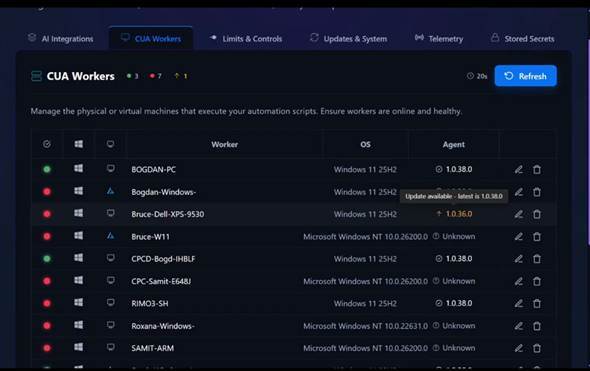
Figure 1 — Settings > CUA Workers. An arrow beside the agent version marks a worker running an older build; hovering it names the latest version available.
- Worker — the machine name. By default this is the computer name as Windows reports it.
- OS — the operating system reported at the worker’s last check-in.
- Agent — the installed worker version. Unknown means the worker has not checked in recently enough to report one.
- Machine type — detected automatically, and shown as an Azure VM badge where applicable.
Renaming a worker
Computer names are rarely friendly. Click the pencil icon on a row and type a better name in place.
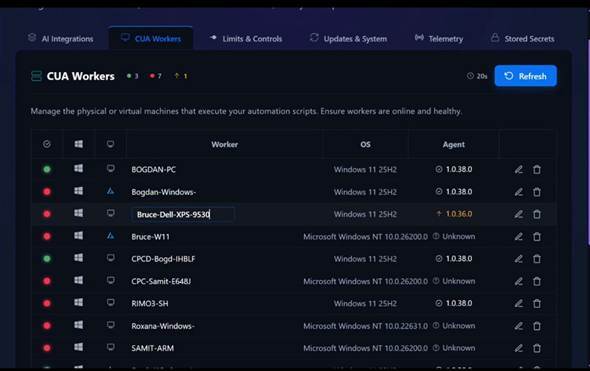
Figure 2 — Renaming a worker in place with the pencil icon.
Adding a new worker
- Scroll to the bottom of the CUA Workers tab and click Download for Windows. This always downloads the latest worker build from our site.
- Run the downloaded MSIX package on the target machine.
- On first launch, the worker asks for a pairing key. Copy the pairing key shown on this same page and paste it in.
- Leave the page open: it shows “Awaiting Connection — Please install the downloaded package. Listening for worker heartbeat…” and picks the worker up as soon as it reports in.
- Download the latest package from Settings > CUA Workers, as in Adding a new worker above.
- Open the package on the worker machine.
- The installer asks whether to update ATP360.Worker, showing the publisher, the version and the source. Tick Launch when ready if you want the worker to start straight afterwards.
- Click Update and let it finish.
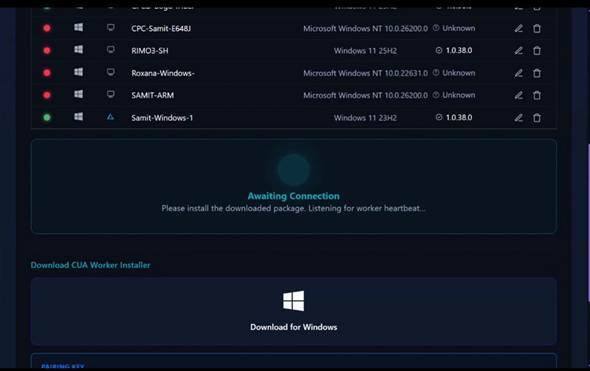
Figure 3 — The bottom of the CUA Workers tab: the installer download, the pairing key for a brand-new worker, and the panel that listens for its first heartbeat.
|
Pairing key: you only need it the first time a worker is installed. Upgrading an existing worker does not ask for it again. |
|
Fuller instructions: the steps above are the short version. For a thorough walkthrough of preparing and provisioning workers — prerequisites, hosting options and the wider set-up — see the ATP360 Deployment Guide on the knowledge base (learn.workspacedna.com/knowledge-base/atp360-deployment-guide). |
Updating the worker agent
In normal running you should not have to do this. The worker version tracks the platform: as the container apps hosting ATP360’s logic are updated, the CUA worker on each device is expected to update itself to match.
If a worker does not come along on its own — you see an up arrow beside its agent version on the CUA Workers tab, or it is still reporting an older build after a platform update — update it by hand with the steps below. Because the worker ships as a signed MSIX package, doing so is a next-next-finish wizard, and the app relaunches if you ask it to.
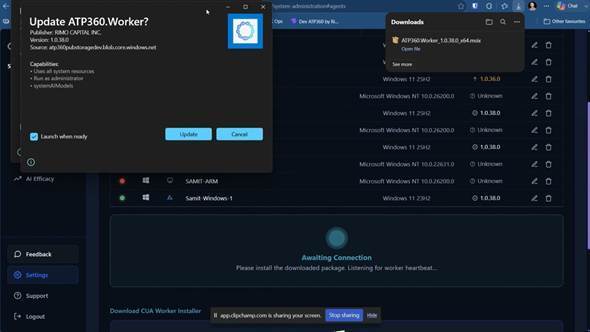
Figure 4 — The MSIX update prompt on the worker machine, showing the publisher and the version being installed.
The worker app on the device
The worker app itself is a small window on the device. It shows the workspace it is paired with, the device name and agent version, its connection state and last heartbeat, whether a run is active (with the run ID and elapsed time), and a live activity log — screenshots captured, text typed, clicks and their coordinates. That log builds up as the worker is used, and is a useful first stop when a run behaves oddly.
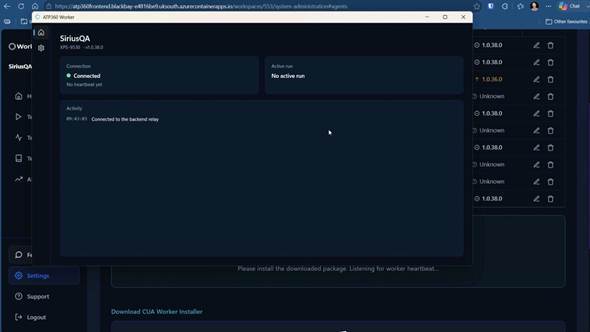
Figure 5 — The ATP360 Worker app on the device: connection state, agent version, active run and activity log.
Checking a worker is ready
Back in Settings > CUA Workers, click Refresh. The worker should now show a green dot and the current agent version, and the counts at the top of the tab should reflect it. It is then selectable in Test Now.
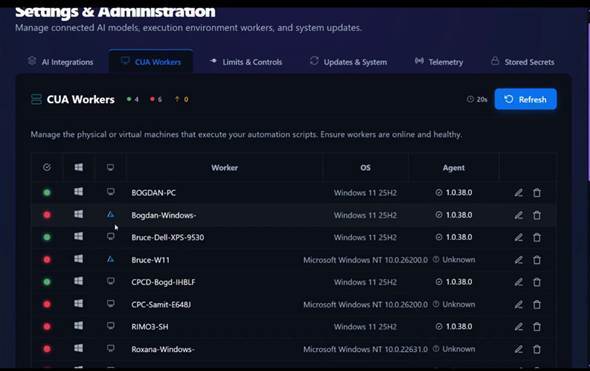
Figure 6 — After a refresh, the updated worker reports in as online and on the current agent version.
|
Azure-hosted workers: machine type is detected automatically, and power management for Azure-hosted workers is on the roadmap — which is why the type column exists. At the time of writing that capability is available in the SaaS offering only, and is covered in a separate video. |
Settings & Administration
Settings holds six tabs: AI Integrations, CUA Workers, Limits & Controls, Updates & System, Telemetry and Stored Secrets. CUA Workers is covered above; the rest follow.
AI Integrations
The top of the tab explains the three layers of the pipeline and lets you set the default engine and model for each. Changes are saved automatically.
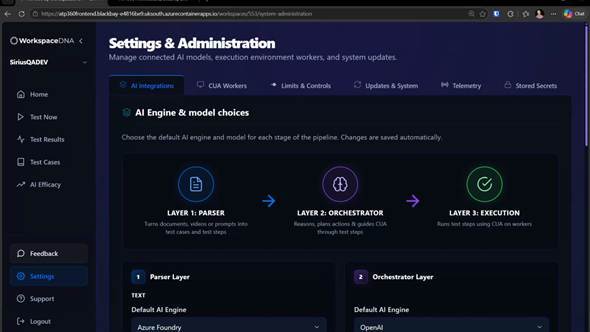
Figure 7 — Settings > AI Integrations, where the default engine for each pipeline layer is set.
|
Coming change: the intention is that the choices made here become workspace-wide defaults, with the selection on the Test Now screen becoming a per-test override. At the time of writing the two do the same thing. |
Connecting the public LLMs
Lower down, AI Engines Connections holds a card per provider — OpenAI, Claude and Gemini. Each is connected by supplying an API key: ATP360 tests the connection and only saves the key if it works. Existing keys are masked; Edit Keys replaces one and Disconnect Engine removes the connection.
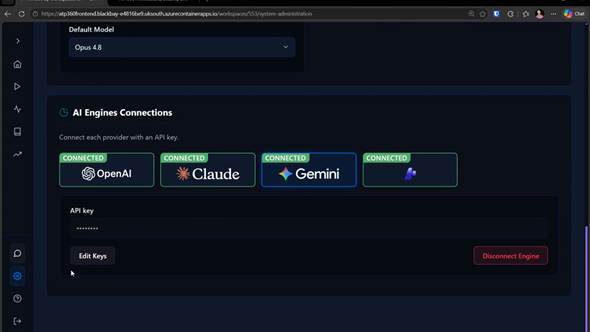
Figure 8 — Each public LLM is connected with an API key, which is validated before it is saved.
Connecting Azure Foundry
The Azure Foundry card works slightly differently. Supply a project endpoint URL and an API key — again tested before saving — and the card then shows which project it is connected to and how many deployments are in use.
There are two reasons to prefer Foundry over a direct connection to a public LLM:
|
Supported models: our Foundry implementation currently supports only the models WorkspaceDNA has tested, and that list is limited to OpenAI and Anthropic models at present. Other models in your project will be listed but are not supported yet. |
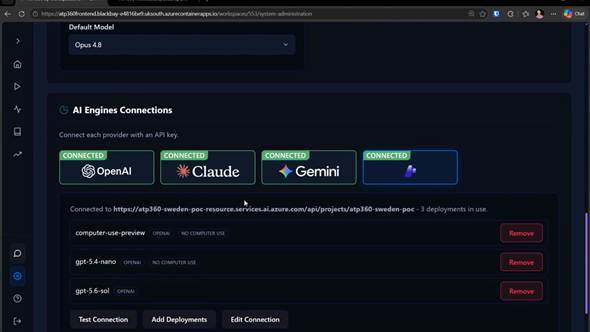
Figure 9 — A connected Azure Foundry project, with the deployments that have been added to it.
You then choose which deployments to make available, because not every deployment in a project is suitable for computer use. Click Add Deployments, tick the ones you want and choose Add Selected. Deployments whose model cannot drive a computer are flagged NO COMPUTER USE and cannot be used at the execution layer — in the example project, only one of the three can execute tests. Remove takes a deployment back out of the list.
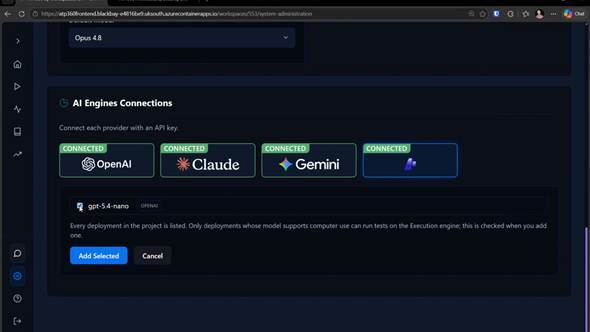
Figure 10 — Adding a deployment. Every deployment in the project is listed, and computer-use capability is checked as it is added.
How costs are calculated
ATP360 costs a run by multiplying the tokens consumed by the pricing it holds for the model. If a model has no known price, the pipeline warns you and runs report a zero cost — the test still executes, it just cannot be costed.
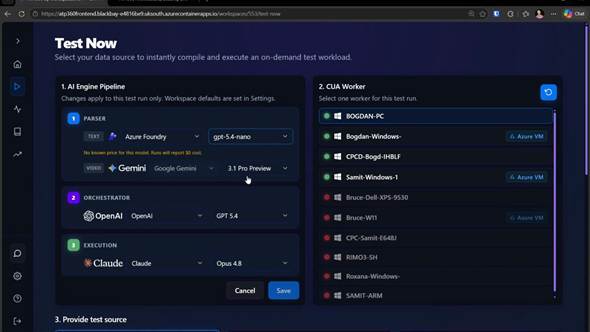
Figure 11 — A model with no published pricing warns that runs will report $0 cost.
Limits & Controls
These settings control how the orchestrator itself behaves. They exist to keep costs down and to keep efficiency and efficacy up, and the tab warns that changing them can increase running costs or cause more failed tests. Nothing here is irreversible: Set to Defaults puts everything back.
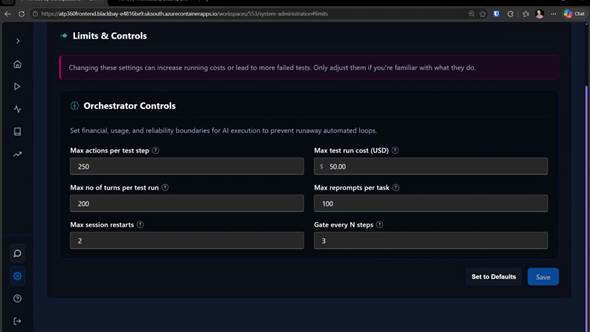
Figure 12 — Settings > Limits & Controls. Orchestrator Controls set the financial, usage and reliability boundaries for every run.
Hover the question mark beside any setting for an explanation of exactly what it does; the knowledge base carries fuller articles on each one.
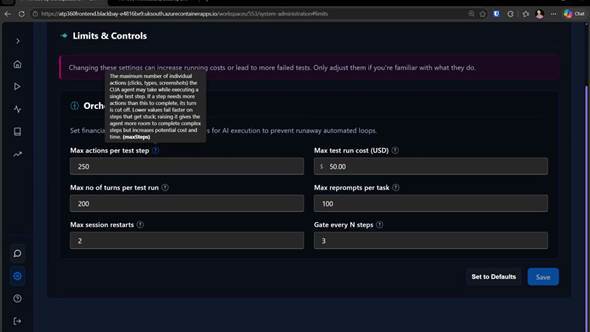
Figure 13 — Hovering a setting’s help icon explains what it controls.
|
Setting |
What it does |
Guidance |
|
Max test run cost (USD) |
Caps the AI spend on a single run. |
Probably the most important control here. It stops very large tests — and runaway tests where the AI is doing something unexpected — from consuming your budget. The default is $50. |
|
Max actions per test step |
Caps the individual actions (clicks, keystrokes, screenshots) the agent may take within one step. If a step needs more than this, its turn is cut off. |
A step that needs a lot of actions is usually a step that was not specific enough. Keeping this tight makes such tests fail fast, which is better than letting the agent click around the UI and possibly pass by luck. |
|
Max no of turns per test run |
Caps the number of turns in a run. A turn is one full cycle between the orchestrator and the CUA worker — the orchestrator asking the worker to do something and getting the result back. |
The same kind of lever as max actions per test step, applied to the whole run. A high number usually means a complicated test, but it also gives the agent room to wander. |
|
Max reprompts per task |
How many times the orchestrator may ask for the same thing again within a task when the worker cannot work out what to do. |
Lower is generally better. If you are seeing large numbers here, the test steps are probably not specific enough — and a failure is a more useful signal than a re-prompted pass. |
|
Max session restarts |
How many times a run may restart after a failure unrelated to the test itself — a connectivity problem with the worker, for example. The run picks up where it left off. |
A high count usually indicates an underlying problem. Note that pausing and resuming a test also increments it, so keep the number low. |
|
Gate every N steps |
How often a second, smaller model double-checks that the actions taken match the step that was asked for. |
This is the guard against the agent heading off in a random direction. A lower number checks more often, which costs more but improves accuracy; a higher number is cheaper and less accurate. Three works well in practice — leave it there unless you are seeing accuracy problems. |
|
Remember to save: changes on this tab take effect when you click Save. Set to Defaults restores the shipped values. |
Updates & System
This tab reports the platform and worker versions you are running — the ATP360 master version, when it was released and installed, and the current worker version — and controls automatic patching.
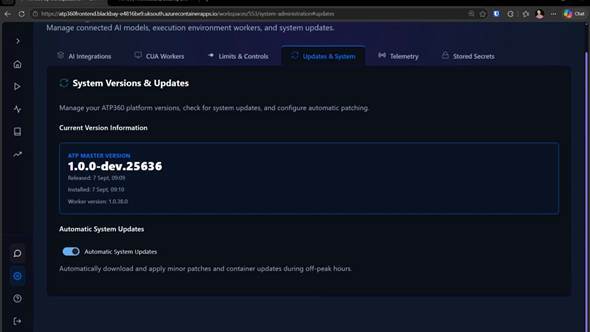
Figure 14 — Settings > Updates & System, with the installed versions and the automatic updates toggle.
Automatic System Updates is on by default, and downloads and applies minor patches and container updates during off-peak hours. Turn it off and updates become a deliberate act: when a new version is available you are prompted — a bell appears on the settings cog — and you apply it yourself. Either way the choice is yours.
Telemetry
ATP360 reports facts about completed test runs to WorkspaceDNA. We use those facts to compare AI engines on efficacy, cost and override rate, and to act on what we find — retiring models that underperform, tuning the ones that do well, and cutting the cost of a run.
You choose how much is reported. The setting lives on the Telemetry tab and takes effect immediately.
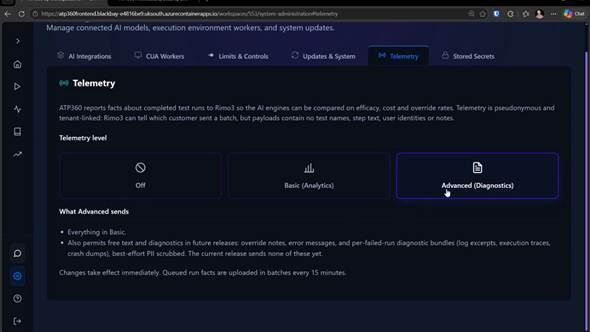
Figure 15 — Settings > Telemetry. Three levels, with what the selected level sends spelled out beneath the selector.
Telemetry levels
|
Level |
What it means |
|
Off |
Nothing is reported. No run facts leave your tenant. |
|
Basic (analytics) |
Structured run facts only — identifiers, outcomes, timings, token counts and costs. No free text of any kind. |
|
Advanced (diagnostics) |
Everything in Basic, plus the note a reviewer typed when overriding an AI verdict. Also permits error messages and per-failed-run diagnostic bundles in future releases. |
Advanced is the default for new workspaces.
What each level sends
|
Run fact |
Off |
Basic |
Advanced |
|
Run id, start and end time |
No |
Yes |
Yes |
|
Outcome and failure category |
No |
Yes |
Yes |
|
AI cost in USD |
No |
Yes |
Yes |
|
Generated steps vs executed actions |
No |
Yes |
Yes |
|
Worker Windows version |
No |
Yes |
Yes |
|
Workspace id |
No |
Yes |
Yes |
|
Per AI layer: provider, model, token counts and cost |
No |
Yes |
Yes |
|
Run review outcome and override reason code |
No |
Yes |
Yes |
|
Reviewer override note, PII scrubbed and shortened |
No |
No |
Yes |
|
Error messages and per-failed-run diagnostic bundles |
No |
No |
Not yet |
|
Test names, step text and user identities |
No |
No |
No |
“Not yet” means the level permits it but the current release does not send it.
What is never sent
At every level, including Advanced, payloads carry no test names, no step text and no user identities. A run fact describes the shape of a run — how long it took, what it cost, whether it passed, which model produced the steps — not the application under test or the person who ran it.
Telemetry is pseudonymous and tenant-linked. WorkspaceDNA can tell which customer sent a batch, because that is what makes the comparison useful to you as well as to us, but a batch cannot be traced to an individual user from its contents.
Reviewer override notes (Advanced only)
When a reviewer overrides an AI verdict, ATP360 captures a reason code and, optionally, a free-text note. On Advanced, that note is sent — best-effort PII scrubbed and shortened first. Two things are worth knowing:
- Notes attached to reviews that agree with the AI are never sent. Only overrides are of interest, because those are the cases where the engine got it wrong.
- Scrubbing is best-effort, not a guarantee. If your reviewers routinely put customer names, hostnames or credentials in override notes, stay on Basic.
Diagnostics (not in the current release)
Advanced also carries permission for error messages and per-failed-run diagnostic bundles — log excerpts, execution traces and crash dumps, best-effort PII scrubbed. The current release sends neither. Selecting Advanced today grants the permission; when the capability ships, it will be documented before it starts sending.
How and when data is sent
Run facts are queued locally and uploaded in batches every 15 minutes. Only completed runs are reported; a run in progress is never in a batch.
Changing the level takes effect immediately and applies from that point forward. It does not retroactively delete facts already uploaded — to have previously uploaded telemetry removed, contact support.
Changing your telemetry level
- Open the Telemetry tab in Settings & Administration.
- Select Off, Basic (analytics) or Advanced (diagnostics).
- The panel below the selector updates to show what that level sends.
The change saves immediately. Anything already queued at the moment you lower the level is discarded rather than sent.
Common questions
Does telemetry slow down my runs?
No. Facts are written after a run completes and uploaded out of band.
Does Off affect any product functionality?
No feature depends on telemetry. You lose nothing in the product by turning it off; we lose the ability to tell you which engine is performing best for workloads like yours.
Can I see what has been sent?
Not in the current release.
Stored Secrets
Some tests have to sign in to something. ATP360 handles that without ever showing the credential to an AI engine.
How secrets work in a test
In a test case, a secret appears as a pill inside the step text — for example “Log in to Accounts Receivable with [Accounts Receivable jmoore] and [Accounts Receivable jmoore pw]”. At run time, AI is used only to locate and focus the right text box; ATP360 then hands over to deterministic automation, which inserts the selected secret from an Azure Key Vault. The AI never sees the value — which is what makes this defensible from an AI governance point of view.
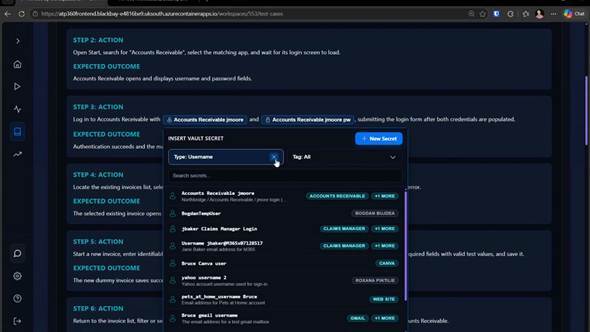
Figure 16 — Choosing a stored secret for a step. You can see its name, description and tags; the value itself is never shown.
Click a secret pill to change which secret a step uses. The picker can be filtered by type and by tag, searched, and used to create a new secret on the spot.
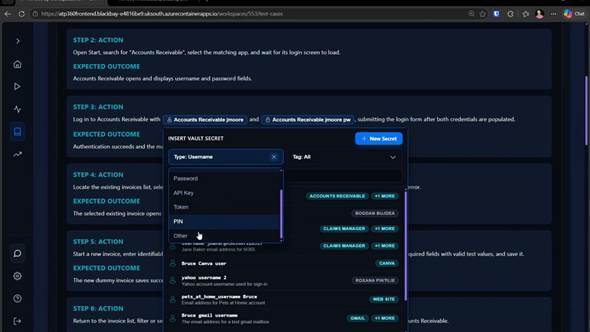
Figure 17 — Secrets are typed — username, password, API key, token, PIN or other — and the picker can be filtered by type and tag.
The Stored Secrets tab
Settings > Stored Secrets lists every credential held for the workspace, with + Add New Secret to create one. Values are write-only: you can overtype a secret with a new value — and see what you have just typed — but you can never read back a stored one, whether from the picker or from here.
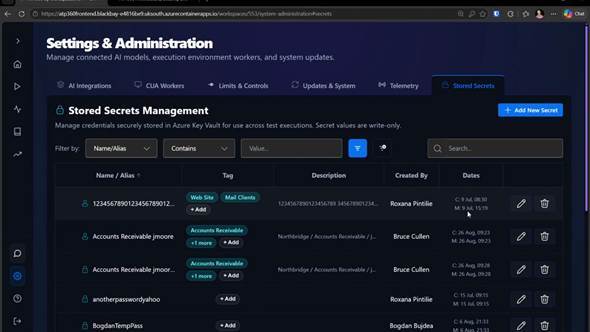
Figure 18 — Settings > Stored Secrets: names, tags, descriptions, who created each secret and when it was created and modified.
|
Column |
What it tells you |
|
Name / Alias |
The name used to refer to the secret in test steps. |
|
Tag |
Tags grouping secrets by application or purpose. |
|
Description |
What the secret is for. |
|
Created By |
Who added it. |
|
Dates |
When it was created and last modified. |
|
Auditability: because the tab records who created each secret, when it was modified and what it is used by, you can account for every credential ATP360 holds without ever exposing one. |
Getting help
If something in ATP360 is not covered here, start with the knowledge base — reachable from Support in the navigation — which carries the deployment and architecture guides, the list of known and fixed issues and an explanation of the test failure types. The other documents in this set are listed on the title page.
If you still cannot find the answer, contact WorkspaceDNA technical support at technicalsupport@workspacedna.com.
Glossary
|
Term |
Meaning |
|
CUA |
Computer-using agent. The AI that actually drives the desktop — moving the pointer, clicking and typing. |
|
CUA worker |
A Windows machine, physical or virtual, running the ATP360 Worker agent, on which tests execute. |
|
Parser |
Layer 1 of the pipeline. Turns documents, videos and prompts into structured test cases. |
|
Orchestrator |
Layer 2. Decides which actions are needed to satisfy each test step. |
|
Execution |
Layer 3. Drives the CUA on the worker, turning intended actions into real clicks and keystrokes. |
|
Test case |
A reusable, structured set of steps with expected outcomes and pass/fail criteria. |
|
Test run |
One execution of a test case on one worker, with its own result, cost and audit trail. |
|
Step |
One instruction in a test case, with an action and an expected outcome. |
|
Action |
One thing the agent does — a click, a keystroke sequence, a screenshot. A step usually takes several. |
|
Turn |
One full cycle between the orchestrator and the CUA worker. |
|
Gate |
A check by a second, smaller model that the actions taken match the step requested. |
|
Override |
A human changing the AI’s verdict on a run, with a reason and notes. |
|
Pairing key |
The one-time key that binds a newly installed worker to your workspace. |
|
Secret |
A credential held in Azure Key Vault and inserted into a test deterministically, never seen by an AI engine. |