
Introduction What ATP360 does
ATP360 is WorkspaceDNA’s agentic application testing and validation platform. It turns documents, videos and prompts into structured, repeatable test cases, executes them on real Windows devices using a computer-using agent, and records fully auditable results — every action taken, the models used, the tokens consumed and the cost of each run.
The platform is built for user acceptance testing and build validation of Windows applications, where the same journeys need to be re-run against new builds, new operating system versions and new patches, with a human able to check and correct the AI’s verdict at any point.
The three-layer AI engine
Every test run passes through three layers. Each layer can use a different AI engine and model, and each is configurable both per run and as a workspace default.
|
Layer |
What it does |
Notes |
|
1. Parser |
Turns documents, videos and prompts into structured, repeatable test cases with steps and defined pass/fail criteria. |
Text and video are configured separately, because they are rarely best served by the same model. |
|
2. Orchestrator |
Reads the structured test steps and decides which actions are needed to satisfy them — for example “click the Start button, then type Word”. |
Also decides when a step is complete, when to re-prompt and when a run has finished. |
|
3. Execution |
The hands on the keyboard. Drives the computer-using agent (CUA) on the device, converting “click Start” into a click at an exact coordinate and an exact sequence of keystrokes. |
Requires a model that supports computer use. Models without that capability cannot be selected here. |
|
Video parsing: at the time of writing Gemini is the only public LLM we have found that works well on video, so it is the only choice offered for the video parser. Text parsing, orchestration and execution can each use any connected engine. |
Before you start
If you are standing the platform up yourself — particularly for a PaaS deployment — read the Architecture, Security and Deployment Pre-Requisites guide on the knowledge base first. It covers the moving parts and what must be in place before provisioning. Then work through the ATP360 Deployment Guide, which walks you through setting up the PaaS solution step by step.
This document assumes ATP360 has already been provisioned for you and that:
- your workspace exists and you can sign in;
- at least one AI engine is connected under Settings > AI Integrations;
- at least one CUA worker is installed and online;
- any credentials your applications need are stored as secrets.
Workers, engine connections and secrets are all covered in the ATP360 Administration Guide.
Finding your way around
The navigation bar runs down the left of every screen. The upper half holds the working areas:
- Home — the dashboard, and the quickest way to drill into recent results.
- Test Now — compile and run an on-demand test.
- Test Results — every run that has completed.
- Test Cases — your library of reusable test cases.
- AI Efficacy — human review of AI verdicts, and the overrides you have made.
- Pass/Fail Status — passed and failed runs over time.
- Test Failures by Type — why runs failed: Stopped Manually, Step Limit Reached, Criteria Not Met, AI Could Not Complete, or Other.
- Overridden Results Over Time — the override rate, i.e. how often a human disagreed with the AI.
- Executed by OS — runs broken down by the operating system of the worker they ran on.
The lower half holds Feedback, Settings, Support and Logout. Directly beneath the WorkspaceDNA logo is the workspace selector, which appears only if you have access to more than one workspace.
The Home dashboard
Home is a high-level dashboard of what ATP360 has been doing. The period it covers is set by the range picker in the top right (for example Last 7 Days or Last 30 Days).
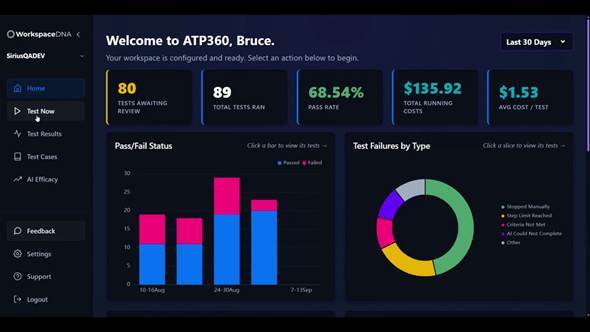
Figure 1 — The Home dashboard. The tiles across the top summarise the selected period; the charts below break the same data down by outcome, failure type and operating system.
The summary tiles|
Tile |
What it shows |
|
Tests awaiting review |
Completed runs a human has not yet approved or overridden. These are the runs listed on the AI Efficacy tab. |
|
Total tests ran |
Number of runs completed in the selected period. |
|
Pass rate |
Percentage of those runs that passed. |
|
Total running costs |
Combined AI cost of those runs. |
|
Avg cost / test |
Mean cost per run. Hover any tile for a day-by-day or week-by-week breakdown. |
The charts, and drilling down
Four charts sit below the tiles:
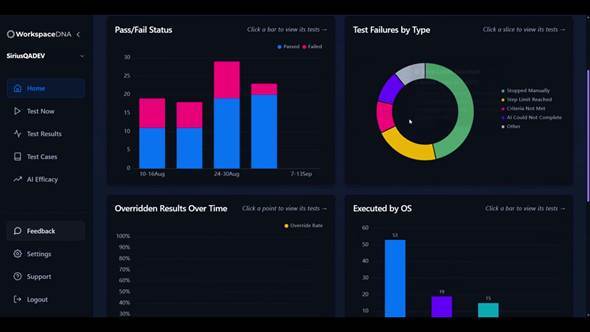
Figure 2 — Each chart carries its own drill-down hint — “Click a bar to view its tests”, “Click a slice to view its tests”, “Click a point to view its tests”.
Everything on this screen is a way into the detail. If you want to see the test cases that failed because their criteria were not met, click that segment of the Test Failures by Type chart: you get the matching runs with their state, action count and cost, and the view icon opens any of them in full.
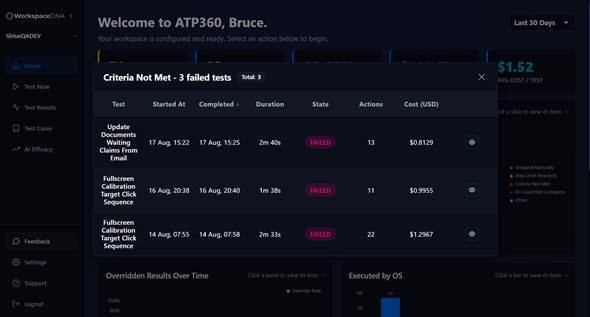
Figure 3 — Drilling into a chart segment — here Criteria Not Met — lists the matching runs, each of which can be opened in full with the view icon.
Your first test
This is the short path from nothing to a signed-off result. Every step has a fuller treatment in ATP360 Running Tests; the point here is to see the whole loop once.
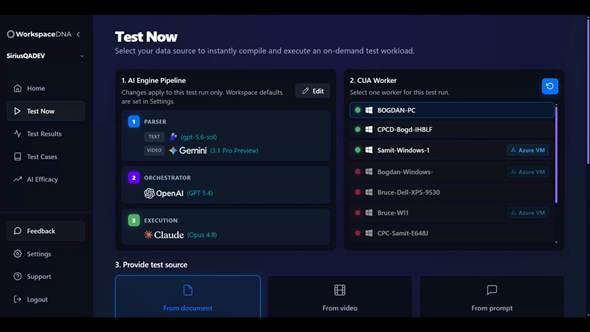
Figure 4 — The Test Now screen, where a test is compiled and run: the AI engine pipeline, the worker to run on, and the test source.
- Open Test Now. Leave the AI Engine Pipeline panel as it is — the workspace defaults are already set.
- In the CUA Worker panel, pick a worker with a green dot. Green means online and ready; a red dot cannot be selected.
- Under Provide test source, choose From prompt and describe the test in plain English — for example “Open Notepad, type hello then load the ATP360 Worker screen which will be open in the background”. Be specific about what should happen.
- Click Extract test steps. ATP360 turns your description into numbered steps, each with an action and an expected outcome. Read them before going further.
- Run the test. The live view shows the test steps on the left, the worker’s screen in the middle and the AI’s action log on the right, with duration, tokens and cost ticking up along the top.
- When it finishes, the result appears at the bottom and asks you to confirm it: Approve if the AI got it right, or Override — with a reason and notes — if it did not.
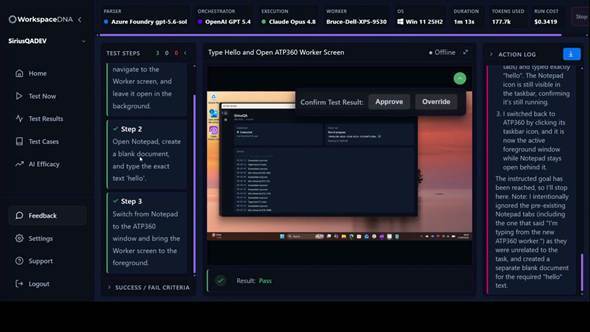
Figure 5 — The end of a run: the AI’s verdict, with Approve and Override for the human checking it.
|
What you now have: a reusable test case saved in your library, a full audit trail of the run, and — once you have approved or overridden it — a human decision recorded against the AI’s verdict. Reviewing those verdicts is covered in ATP360 Managing and Reviewing Tests. |
Workspaces, feedback and support Switching workspace
If you have access to more than one workspace, a selector appears beneath the WorkspaceDNA logo showing the one you are working in; click it to switch. Most people have a single workspace and will never see this control — if it is there, it means you have several.
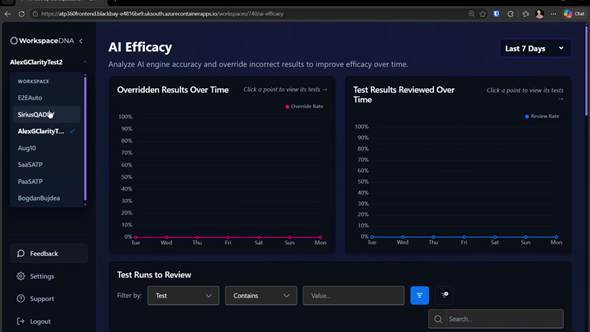
Figure 6 — The workspace selector, listing the workspaces you can switch between.
Feedback
The Feedback button in the lower half of the navigation opens an external feedback board. Use it for anything you would like to see in ATP360, or for general feedback — it is not the route for support issues.
Support and the knowledge base
Support opens the WorkspaceDNA knowledge base. The ATP360 section holds the guides that sit alongside this set, including the architecture and security guide (how the platform is put together, what the moving parts are and what must be in place before provisioning), the deployment guide, known and fixed issues, and an explanation of the test failure types.
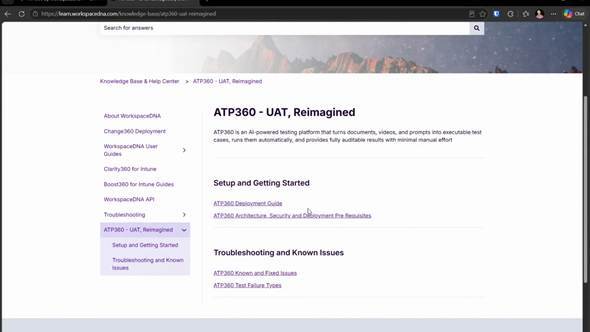
Figure 7 — The ATP360 area of the WorkspaceDNA knowledge base.
Getting help
If something in ATP360 is not covered here, start with the knowledge base — reachable from Support in the navigation — which carries the deployment and architecture guides, the list of known and fixed issues and an explanation of the test failure types. The other documents in this set are listed on the title page.
If you still cannot find the answer, contact WorkspaceDNA supporte on technicalsupport@workspacedna.com.
Glossary
|
Term |
Meaning |
|
CUA |
Computer-using agent. The AI that actually drives the desktop — moving the pointer, clicking and typing. |
|
CUA worker |
A Windows machine, physical or virtual, running the ATP360 Worker agent, on which tests execute. |
|
Parser |
Layer 1 of the pipeline. Turns documents, videos and prompts into structured test cases. |
|
Orchestrator |
Layer 2. Decides which actions are needed to satisfy each test step. |
|
Execution |
Layer 3. Drives the CUA on the worker, turning intended actions into real clicks and keystrokes. |
|
Test case |
A reusable, structured set of steps with expected outcomes and pass/fail criteria. |
|
Test run |
One execution of a test case on one worker, with its own result, cost and audit trail. |
|
Step |
One instruction in a test case, with an action and an expected outcome. |
|
Action |
One thing the agent does — a click, a keystroke sequence, a screenshot. A step usually takes several. |
|
Turn |
One full cycle between the orchestrator and the CUA worker. |
|
Gate |
A check by a second, smaller model that the actions taken match the step requested. |
|
Override |
A human changing the AI’s verdict on a run, with a reason and notes. |
|
Pairing key |
The one-time key that binds a newly installed worker to your workspace. |
|
Secret |
A credential held in Azure Key Vault and inserted into a test deterministically, never seen by an AI engine. |