
In this article
Removing a provisioned Cloud PC Task Runner
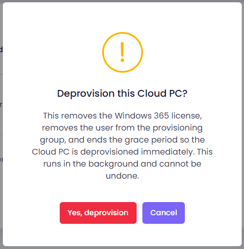
You can deprovision Cloud PC Task Runners provisioned by Change360 using the Cloud PC Management page in your workspace. Deprovisioning a provisioned Cloud PC task Runner does 3 things:
- Removes the assigned Windows 365 license from the associated user, triggering a 7 day grace period, as well as removing the user from the provisioning group.
- Enqueues an action to deprovision the Cloud PC when it enters the 7 day grace period
- Deprovisions the Cloud PC
Only provisioned Cloud PC Task Runners can be deprovisioned. To deprovision a linked Cloud PC, you must first unlink it by following the steps below. After it has been unlinked, remove the Windows 365 license and deprovision the device through Microsoft 365 admin center and Intune.
Before you continue, note that deprovisioning is permanent. Once the process begins, it cannot be stopped, and the Cloud PC will be permanently removed.
To deprovision a Cloud PC Task Runner
- Login to your workspace and navigate to Extend Menu → Cloud PCs
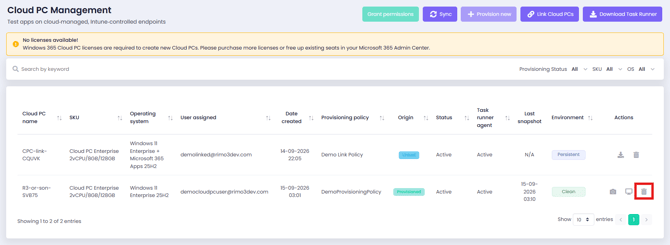
- On the Cloud PC Management page click on the trash can next to the Cloud PC task Runner you want to deprovision
- On the confirmation popup click on Yes, deprovision
- The Cloud PC Task Runner will be removed from the Cloud PC Management page once it has been deprovisioned in Intune.
Unlinking a Cloud PC Task Runner
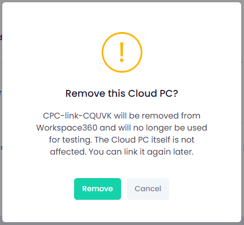
You can remove Cloud PC Task Runners linked to Change360 using the Cloud PC Management page in your workspace.
Unlinking a Cloud PC doesn't do anything to the device itself as Change360 only has read access linked device. Once unlinked the device will no longer appear on the Cloud PC Management page and will not be available to use for testing.
After being unliked you can relink the same device be following the step for Linking existing Cloud PCs to Change360.
To remove a linked Cloud PC Task Runner
- Login to you workspace and navigate to Extend Menu → Cloud PCs
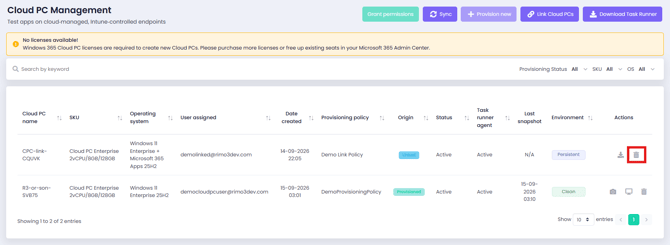
- On the Cloud PC Management page click on the trash can next to the linked Cloud PC task Runner you want to remove.
- On the confirmation popup click on Remove
- The Cloud PC Task Runner will be removed from the Cloud PC Management page immediately.