
In this article
- Before you start
- Linking an existing Cloud PC
- Ensure that the assigned user is a local admin
- Configuring a Cloud PC as a Task Runner
Before you start
Ensure that you have:
- Reviewed the Cloud PC feature prerequisites
- Granted consent for the permissions required to link Cloud PCs
- Access to the credentials of the user assigned to the Cloud PC(s) you want to link
- Made the user assigned to to the Cloud PC a local admin
Ensure that the assigned user is a local admin
There are multiple ways of granting the assigned Cloud PC user local admin rights, including:
- Cloud PC Configurations (Microsoft recommended) - Ensure a Cloud PC Configuration scoped for the Cloud PC includes Enable Local admin set to Enabled
- User Settings - Ensure a Cloud PC Configuration scoped for the Cloud PC includes Enable Local admin set to Enabled
- Intune Account Protection Policy - Use Endpoint Security → Account Protection → Local user group membership and add the user (or preferably an Entra security group) to the local Administrators group. Scoped the policy specifically to Cloud PCs using assignment filters.
Linking an existing Cloud PC
- Login to your workspace and navigate to Extend Menu → Cloud PCs
- On the Cloud PC Management page click on Link Cloud PCs
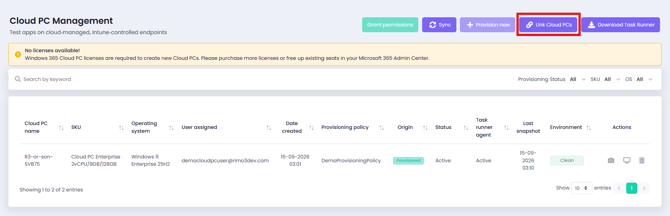
- You will be presented with a list of Cloud PCs in your environment, the list may take a while to load if you have a very large number of Cloud PCs.
All Cloud PCs will be shown in the list but they will only be useable if they were provisioned through a Provisioning Policy that uses an Azure Network Connection linked to one of the following:
-
the Gateway virtual network
-
a virtual network that is directly peered with the Gateway virtual network
You can hover over the Useable state of a Cloud PC to understand why it cannot be linked
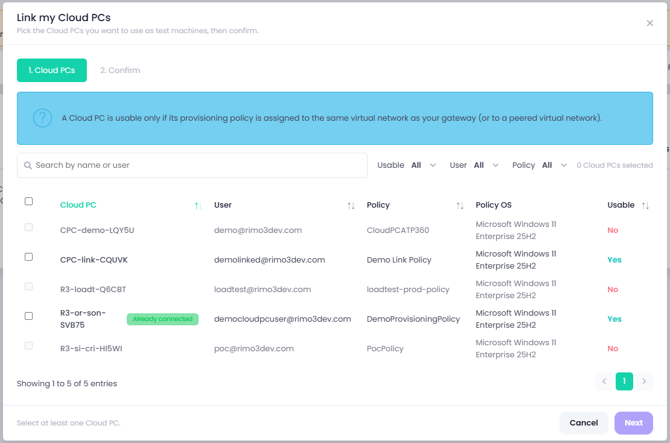
- If necessary search and/or filter the list to find the Cloud PC(s) you want to link

- Select one or more Cloud PCs and click on Next
- On the Confirm tab review the selected Cloud PCs and click on Link Cloud PCs when you are ready
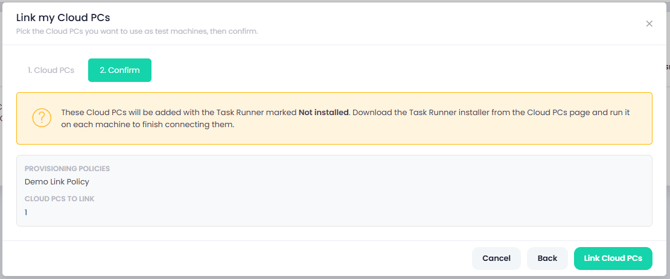
- The selected Cloud PCs will be linked to you Change360 workspace and immediately appear on the Cloud PC Management page.
- Newly linked Cloud PCs will have a Task Runner Agent status of Not installed until the Task Runner agent is installed on the device.
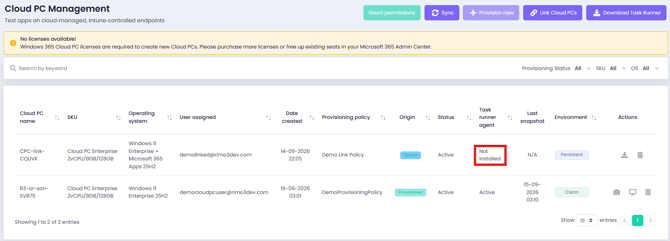
- Follow the steps below to install the Task Runner agent on a linked Cloud PC
Configuring a Cloud PC as a Task Runner
Before proceeding make sure that:
- You have access to the password for the user assigned to the Cloud PC
- The user assigned to the Cloud PC has local admin rights
- If necessary, login to your workspace and navigate to Extend Menu → Cloud PCs
- On the Cloud PC Management page click on Download Task Runner
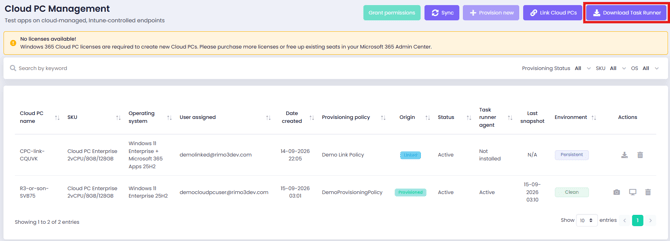
- Once downloaded copy the zip file to the newly linked Cloud PC, or a location accessible from the Cloud PC
- Login to the Cloud PC and extract the downloaded zip file
- There are 3 ways of running the Task Runner installer, all of which require the credentials of the assigned Cloud PC user to be provided so that secure auto-login can be configured.
- Manually run Install-TaskRunner.exe - you will be prompted for the user name and password of the assigned Cloud PC user
- Run Install-TaskRunner.exe with command line switches - to pass the assigned Cloud PC user's credentials to the install
- Populate settings.json with the assigned Cloud PC user's credentials - so that Install-TaskRunner.exe runs completely silently
You may need to unblock Install-TaskRunner.exe in File properties before you can use it because it was downloaded from the internet.
Manually run Install-TaskRunner.exe
-
- Double-click on Install-TaskRunner.exe, you will be prompted for elevated rights.
- When prompted enter the credentials for the assigned Cloud PC user
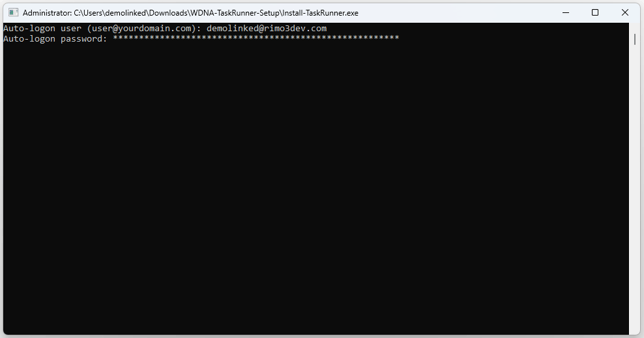
- The Installer will download and install the latest version of the Task Runner agent.
Run Install-TaskRunner.exe with command line switches
-
- Open an elevated command prompt
- Browse to the extracted files
- run:
Install-TaskRuner.exe -AutoLogonUser="<assigneduser@doamin.com>" -AutoLogonPassword="<password>"
If the password contains a double quote it should be escaped in the command line by prefixing it with a forward slash \"
-
- The Installer will run silently and download and install the latest version of the Task Runner agent.
Populate settings.json with the assigned Cloud PC user's credentials
-
- Browse to the extracted files
- Open settings.json in a text editor
- Populate the values of the following properties as appropriate:
"AutoLogonUser": "<assigneduser@doamin.com>","AutoLogonPassword": "<password>"
If the password contains a double quote it should be escaped in the json value by prefixing it with a forward slash \"
-
- Double-click on Install-TaskRunner.exe, you will be prompted for elevated rights.
- The Installer will run silently and download and install the latest version of the Task Runner agent.
Finishing the Task Runner installation
-
- Once the install is complete and the agent has registered the Task runner agent status for the linked Cloud PC will update to Active
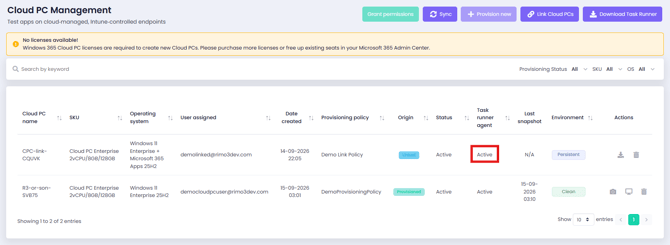
- The linked Cloud PC is now ready to use as a Task Runner
- Once the install is complete and the agent has registered the Task runner agent status for the linked Cloud PC will update to Active
If the Task Runner agent has successfully registered but is not running and connected to the Gateway it will show as Inactive on the Cloud PC Management page. This could be because the device is restarting but could also be indicative of an issue with autologin, see Troubleshooting Cloud PC issues for more options.