
Before you start
Ensure that you have:
- Reviewed the Cloud PC feature prerequisites
- Granted consent for the permissions required to provision Cloud PCs
- An available Windows 365 license
Provisioning your first Cloud PC Task Runner
To create and provision a Cloud PC Task Runner do the following:
- Login to your workspace and navigate to Extend Menu → Cloud PCs
- Click on Add Cloud PC
- On the User & License tab you can either create a new user to be associated with the Cloud PC or select one that was previously created as part of the Cloud PC feature. At this time, you cannot select a pre‑existing Entra user who was not created as part of the Cloud PC feature.
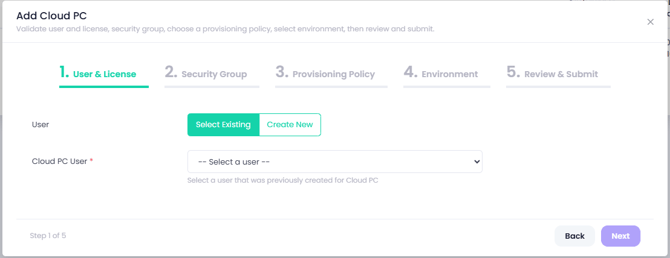
- Select Create New
- In the User Email field enter a valid UPN for the new user
- Click Validate
- Once the new user has been validated you can select a Windows 365 license from the Assign License dropdown, then click Next
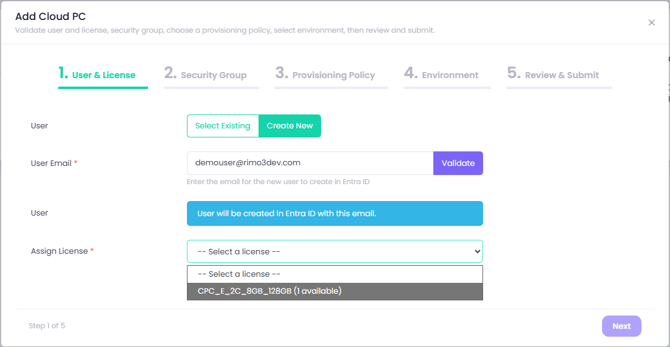
If no licenses are available, you will not be able to continue until more licenses are added or one is made available.
- On the Security Group tab you can either create a new security group to be associated with the user created/selected in step 1 or select one that was previously created as part of the Cloud PC feature.
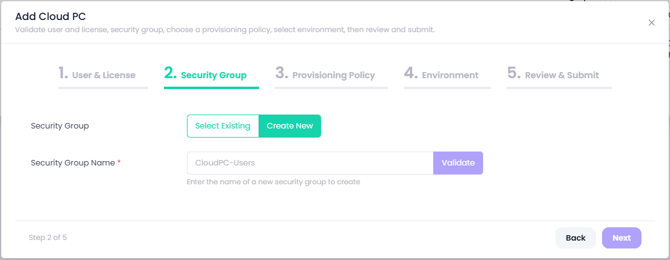
- Select Create New
- In the Security Group Name field, type the name you want to assign to the new security group.
- Click Validate.
- Once the security group has been successfully validated click Next.
- On the Provisioning Policy tab, you can either create a new provisioning policy for the Cloud PC or select one that was previously created as part of the Cloud PC feature.
- Select Create new policy from the Provisioning Policy dropdown
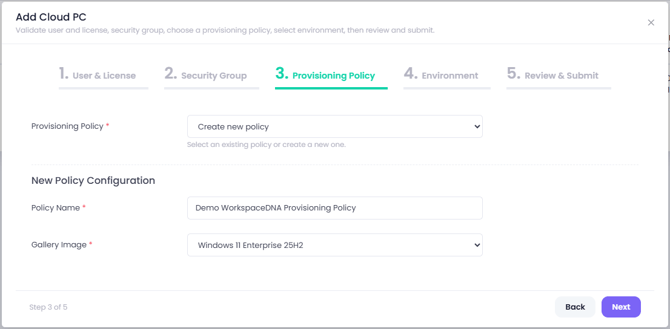
- In the Policy Name field type the name you want to assign to the new Provisioning Policy
You may want to include something to identify this as part of the WorkspaceDNA service as this provisioning policy will not be suitable to use when provisioning Cloud PCs for users because it will be associated with the Gateway's Vnet.
-
- Select an image from the Gallery Image dropdown.
- On the Environment tab choose whether the the Cloud PC task runner should be deployed with a Clean or Persistent configuration.
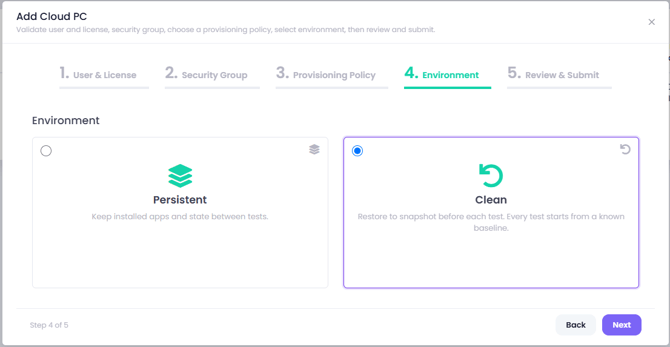
- Clean - Each test is performed on a Clean device that is reverted to a snapshotted state in between tests.
- Persistent - the Cloud PC task runner is not reverted between tests allowing the device to accumulate updates and policy changes and to test the upgrade of the applications being tested.
"Clean" Cloud PC Task Runners can be configured with applications and configuration policies before creating a new snapshot. Clean refers to reverting the Cloud PC to the snapshotted state.
- On the Review & Submit tab review the selected configuration
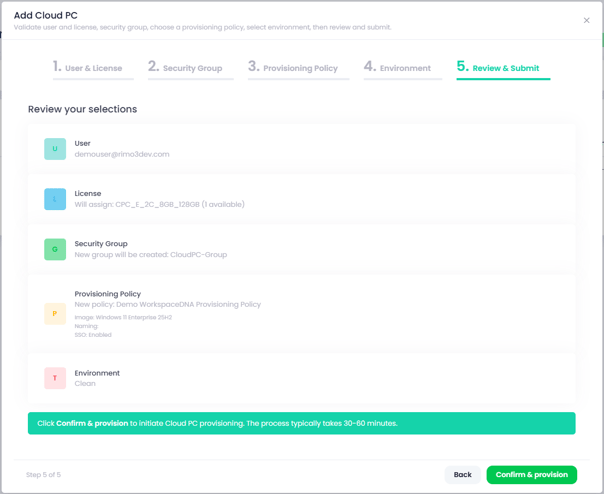
- Click Confirm & provision when you are ready, click on Yes, provision on the confirmation popup
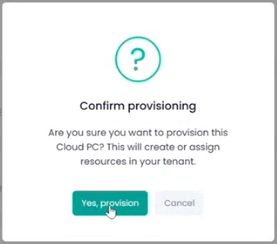
When you click Confirm & provision new resources will be created as appropriate and the Cloud PC will then be provisioned. More details about what happens next can be found further below.
- You can monitor the progress of provisioning on the All Cloud PCs tab in Intune under Devices → Manage Windows 365 Cloud PCs → All Cloud PCs
The first Cloud PC you provision may take up to 30 minutes longer because the Azure Network Connection is created during that process. After that, subsequent Cloud PCs should provision more quickly because the Azure Network Connection only needs to be created once.
- Once the Cloud PC is provisioned it can take a further 15-30 minutes for the platform script to be invoked and the Task Runner Agent installation and configuration to be completed, and a snapshot to be created.
- The Cloud PC will be use able when the Status and Task runner agent columns show active and the Last snapshot column has a date and time stamp.
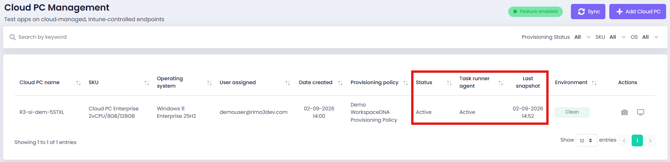
A snapshot must exist for the Cloud PC before it can be used so that it can be reverted to a clean state before the next test is carried out.