
Ring 0 validation adds an automated test gate to your Intune deployment templates in WorkspaceDNA Change360. Before an application is assigned to anyone in Intune, Change360 installs it on one or more persistent Cloud PCs in your workspace and runs the checks you've configured. Only if every check passes on every selected Cloud PC does Change360 start triggering the assignments defined in the template's phases.
This article explains how to create an Intune deployment template with Ring 0 validation enabled, how validation affects your deployments, and how to use the template once it's set up.
In this article
- Prerequisites
- How Ring 0 validation works
- Configuring Ring 0 validation for an Intune Deployment Template
- Using Ring 0 validation-enabled Intune Deployment Templates
- Monitoring Ring 0 validation
- Next steps
Prerequisites
Before you can configure Ring 0 validation, make sure you have:
- At least one persistent Cloud PC configured in your Change360 workspace. Persistent Cloud PCs aren't reverted between tests. Cloud PCs linked from your own tenant are always persistent; Change360-provisioned Cloud PCs can be set to persistent. See Cloud PC Overview for details.
- Consent granted for Change360 to manage applications in Intune for the Intune instance you plan to deploy to.
How Ring 0 validation works
When an application is deployed using a template with Ring 0 validation enabled:
- Change360 installs the application on each Cloud PC selected in the template.
- The configured checks (smoke tests by default) run on each Cloud PC.
- If the application installs and passes every check on all selected Cloud PCs, Change360 proceeds with the Intune assignments defined in the template's remaining phases.
- If any check fails on any selected Cloud PC, assignments in Intune don't proceed.
Configuring Ring 0 validation for an Intune Deployment Template
- Log in to your Change360 workspace at https://rimo3cloud.com.
- On the left-hand navigation menu, click Extend Menu → Intune Templates.
- On the Intune Deployment Templates page, click New Template.

- On the General Details tab:
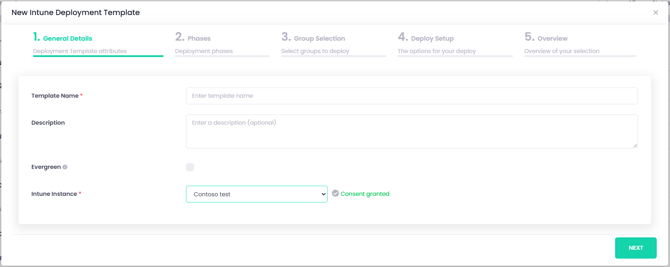
- Enter a Template Name.
-
- Optionally, enter a Description for the template.
- Select Evergreen if you want to use the template to subscribe to applications in Patch360.
- Select an Intune instance for which Change360 has been granted consent to manage applications.
Ring 0 validation requires an additional permission, Device.Read.All, to assign applications to linked Cloud PCs. If you granted consent for the selected Intune instance before Ring 0 was available, you need to grant consent again for this additional permission.
-
- Click Next.
-
On the Phases tab:
-
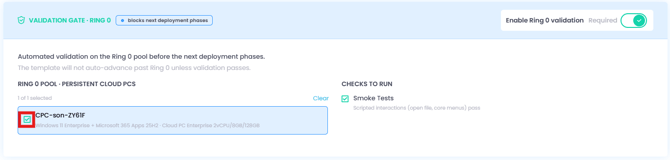
Click the toggle to enable Ring 0 validation.

-
From the list, select the Cloud PC or Cloud PCs you want applications to be tested on.
-
If more than one Cloud PC is available, you can search the list of devices.
-
- Under Checks to run, Smoke tests will already be selected.
Every selected Cloud PC must pass. An application must install successfully and pass the smoke test on all selected Cloud PCs before assignments in Intune proceed. Selecting more Cloud PCs gives broader coverage, but also means a failure on any one of them holds the deployment.
-
Ring 0 validation assigns the application to the security group you selected (users and/or devices), monitors the Intune installation, and then runs the smoke tests.
Add at least one phase after Ring 0 validation, then complete the remaining steps of the New Intune Deployment Template wizard.
Using Ring 0 validation-enabled Intune Deployment Templates
You can use an Intune deployment template with Ring 0 validation to:
-
Onboard applications from Patch360 to your Change360 workspace.
-
Subscribe to applications from Patch360 (for Evergreen templates, new versions are validated on your Cloud PCs before they're assigned).
-
Export applications directly to Intune from Change360.
In each case, Ring 0 validation runs first, and assignments only proceed once it passes.
Monitoring Ring 0 validation
You can monitor Ring 0 validations on the Intune Deployments dashboard. Ring 0 results are also displayed for applications on the Modern Readiness dashboard.
Ring 0 validation results
| Result | Meaning |
| In Progress | The selected application(s) have been assigned to the specified Cloud PC(s), which are being monitored for the result of the installation. Monitoring times out after 24 hours. |
| Passed | The selected application(s) successfully installed and passed all smoke test steps on the specified Cloud PC(s) and the deployment template will execute Phase 1 as per the template configuration. |
| Install timed out | The selected application(s) were not found to have successfully installed on one or more of the specified Cloud PCs within the 24-hour monitoring window. |
| Install failed | One or more selected applications failed to install on one or more of the specified Cloud PCs. |
| Smoke test failed | The installation of all selected applications completed successfully on all specified Cloud PCs but one or more smoke tests failed on at least one of the specified Cloud PCs. |
| Overridden - <result> | The specified result was overridden to allow the deployment template to proceed with executing Phase 1 as per the template configuration. |
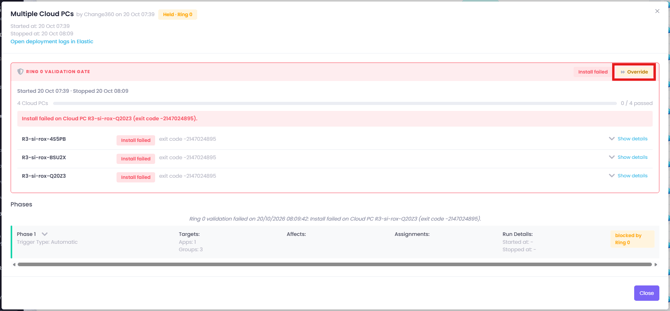
If multiple Cloud PCs are selected and they report different failures (Install failed, Smoke test failed, Install timed out), the first failure recorded is shown as the overall Ring 0 result on the Intune Deployments dashboard. To see full details of the Ring 0 validation results, click the eye icon for the deployment.
Overriding Ring 0 validation failures
If one or more Ring 0 validation steps fail, you can manually override the Ring 0 validation gate once you've investigated the issue and are satisfied that it's resolved and the selected applications can proceed with the configured assignments.
- Click the eye icon for the deployment.
- Click Override.
- Enter a reason for the override (optional) and click Override.
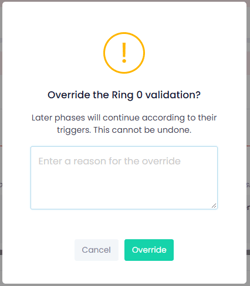
Overriding Ring 0 validation can't be undone. The Intune Deployment Template phases will immediately begin executing according to the template configuration.
- Once Ring 0 validation has been overridden, Phase 1 of the deployment template will be executed.
Next steps
-
Cloud PC Prerequisites — permissions needed to provision or link Cloud PCs.
-
Provisioning Cloud PC Task Runners with Change360 or Linking existing Cloud PCs to Change360 — set up the persistent Cloud PCs used for Ring 0 validation.