
This page covers the AI Integrations tab in Settings: choosing the default engine and model for each pipeline layer, connecting public LLMs and Azure Foundry, and how ATP360 works out what a run costs. It is for administrators who manage which AI engines a workspace uses.
Setting the default engine for each layer
The top of the tab explains the three layers of the pipeline — parser, orchestrator and execution (see the ATP360 Glossary) — and lets you set the default engine and model for each. Changes are saved automatically.
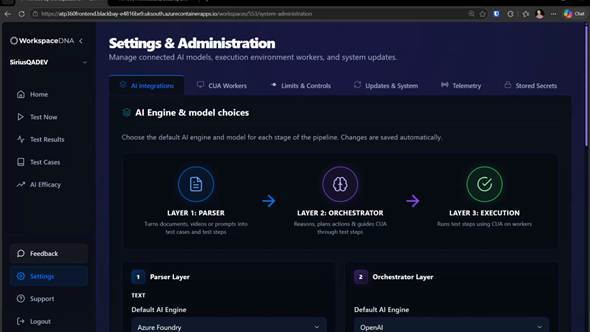
Figure 1 — Settings > AI Integrations, where the default engine for each pipeline layer is set.
Note: The choices made here are workspace-wide defaults. If you change the AI models when parsing or running a test, the change applies to that test run only.
Connecting the public LLMs
Lower down, AI Engines Connections holds a card per provider — OpenAI, Claude and Gemini. Each is connected by supplying an API key: ATP360 tests the connection and only saves the key if it works. Existing keys are masked; Edit Keys replaces one and Disconnect Engine removes the connection.
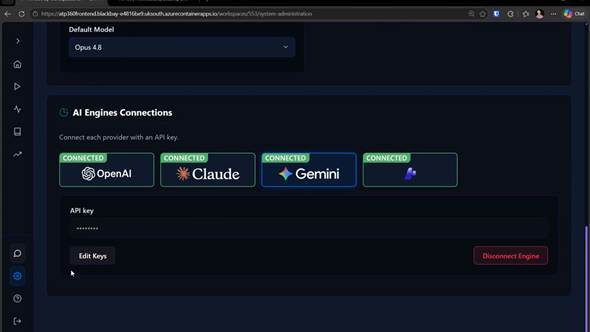
Figure 2 — Each public LLM is connected with an API key, which is validated before it is saved.
Connecting Azure Foundry
The Azure Foundry card works slightly differently. Supply a project endpoint URL and an API key — again tested before saving — and the card then shows which project it is connected to and how many deployments are in use.
There are two reasons to prefer Foundry over a direct connection to a public LLM:
- More control over hosting and tuning. Azure Foundry gives you more control over how models are hosted and tuned, and some models can be hosted in your own Azure tenant.
- Lower costs through existing Microsoft agreements. Some companies have custom pricing agreements with Microsoft, or credits available for AI usage, which reduce the cost of using ATP360.
Important: Supported models — our Foundry implementation currently supports only the models WorkspaceDNA has tested, and that list is limited to OpenAI and Anthropic models at present. Other models in your project will be listed but are not supported yet.
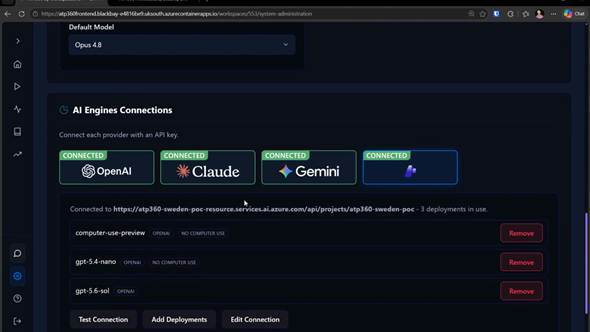
Figure 3 — A connected Azure Foundry project, with the deployments that have been added to it.
You then choose which deployments to make available, because not every deployment in a project is suitable for computer use. Click Add Deployments, tick the ones you want and choose Add Selected. Deployments whose model cannot drive a computer are flagged NO COMPUTER USE and cannot be used at the execution layer — in the example project, only one of the three can execute tests. Remove takes a deployment back out of the list.
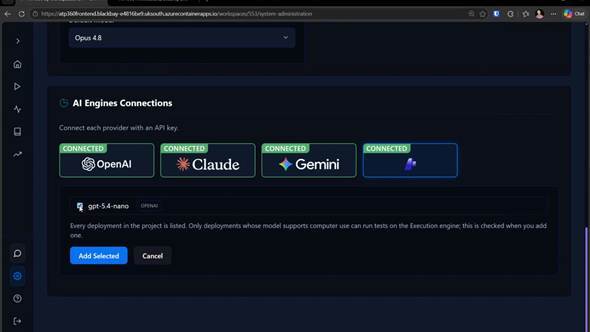
Figure 4 — Adding a deployment. Every deployment in the project is listed, and computer-use capability is checked as it is added.
How costs are calculated
ATP360 costs a run by multiplying the tokens consumed by the pricing it holds for the model. If a model has no known price, the pipeline warns you and runs report a zero cost — the test still executes, it just cannot be costed.
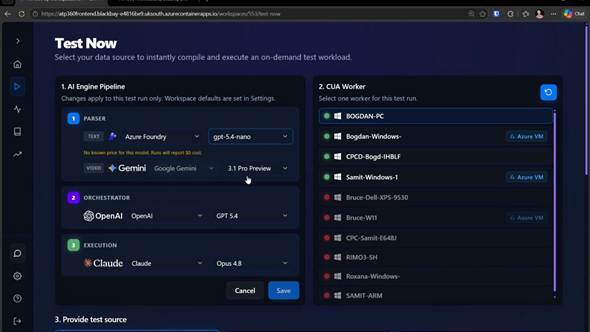
Figure 5 — A model with no published pricing warns that runs will report $0 cost.
Related articles- Administration Guide – Overview
- Limits & Controls — capping the AI spend on a single run
- Telemetry — how WorkspaceDNA compares AI engines
- ATP360 Glossary — parser, orchestrator, execution, CUA