
This page covers the CUA Workers tab in Settings: what it shows, how to rename, add, update and check a worker, and who can see and use each worker. It is for administrators who provision and look after the machines ATP360 runs tests on, and for users who pair a worker for their own use.
Managing CUA workers
A CUA worker is a Windows machine — physical or virtual — running the ATP360 Worker agent. It is where tests actually execute: the agent receives instructions from the orchestrator and drives the desktop. Workers are managed under Settings > CUA Workers.
The CUA Workers tab
The tab lists every worker with its status dot, platform, machine type, name, operating system and agent version, and counts online, offline and update-available workers at the top. Refresh re-polls them.
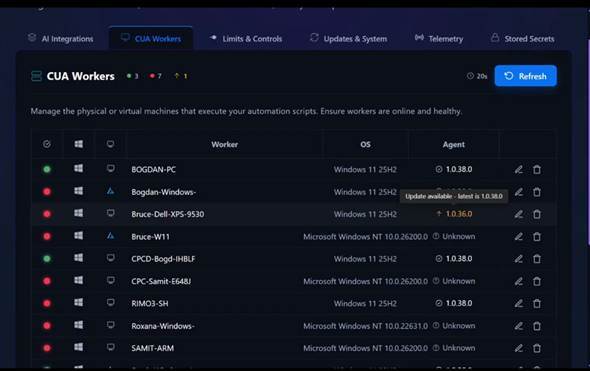
Figure 1 — Settings > CUA Workers. An arrow beside the agent version marks a worker running an older build; hovering it names the latest version available.
- Worker — the machine name. By default this is the computer name as Windows reports it.
- OS — the operating system reported at the worker’s last check-in.
- Agent — the installed worker version. Unknown means the worker has not checked in recently enough to report one.
- Machine type — detected automatically, and shown as an Azure VM badge where applicable.
Note: Power management for Azure-hosted workers is on the roadmap — which is why the machine type column exists. At the time of writing that capability is available in the SaaS offering only, and is covered in a separate video.
Renaming a worker
Computer names are rarely friendly. Click the pencil icon on a row and type a better name in place.
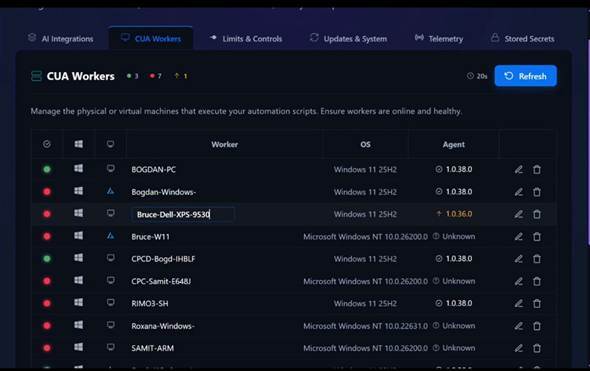
Figure 2 — Renaming a worker in place with the pencil icon.
Adding a new worker
- Scroll to the bottom of the CUA Workers tab. Under Add a CUA Worker, choose where the worker runs: select WorkspaceDNA Worker for a physical or virtual machine you manage that has network connectivity to ATP360. (Windows 365 for Agents instead connects an agent pool in your own Microsoft tenant, and each connection adds a Cloud PC worker.)
- Click Download for Windows. This always downloads the latest worker build from our site.
- Under Who should be able to use this CUA Worker?, choose Only me or All users. Do this before you copy the key: each choice issues its own pairing key, and that key decides who can use the worker. Admins can choose either option; other users can pair a worker for themselves only. See Who can use a worker below.
- Click Copy key. The badge beside Pairing key shows which choice the key was issued for.
- Run the downloaded MSIX package on the target machine. On first launch, the worker asks for a pairing key: paste it in.
- The worker appears under Connected Workers as soon as it connects.
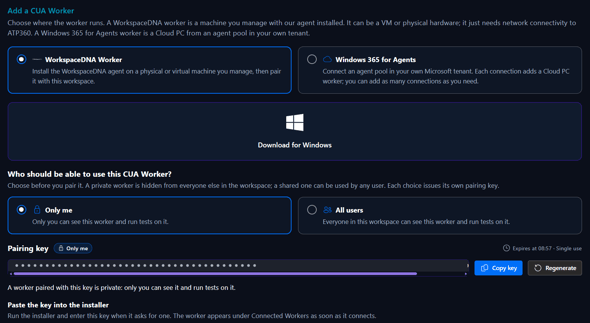
Figure 3 — The Add a CUA Worker panel at the bottom of the CUA Workers tab: where the worker runs, the installer download, who can use the worker, and the pairing key issued for that choice.
Note: The pairing key binds a newly installed worker to your workspace and fixes who can use it. Each key is single use and expires after a short time (the expiry is shown beside the key); click Regenerate if you need a fresh one. You only need a key the first time a worker is installed. Upgrading an existing worker does not ask for it again.
Tip: The steps above are the short version. For a thorough walkthrough of preparing and provisioning workers — prerequisites, hosting options and the wider set-up — see the ATP360 Deployment Guide on the knowledge base.
Who can use a worker
Every CUA worker is either private or shared. Which one is decided when the worker is paired, by the pairing key used:
- Only me (private): only the person who paired the worker can see it and run tests on it. It is hidden from everyone else in the workspace.
- All users (shared): everyone in the workspace can see the worker and run tests on it.
What you can choose depends on your role:
- Admins can pair a worker for themselves only or for all users, and can see and administer every CUA worker in the workspace, private or shared.
- Users can pair a worker too, but only for themselves.
Note: During a SaaS trial, a CUA worker that WorkspaceDNA provisions at your request is always shared with all users in the workspace. Its sharing cannot be changed.
Changing who can use a worker
Sharing is fixed by the pairing key, so it cannot be switched on a worker that is already paired. To change it, unpair the worker and pair it again with a key issued for the other choice:
- On the worker machine, open the ATP360 Worker app and go to Settings.
- On the Workspace card, click Unpair.
- In ATP360, go to Settings > CUA Workers. Under Who should be able to use this CUA Worker?, choose the new option, then click Copy key.
- Paste the key into the worker app when it asks for one.
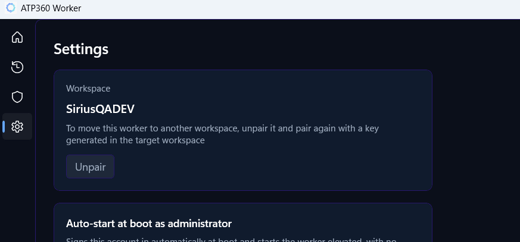
Figure 4 — Settings in the ATP360 Worker app. Unpair removes the worker from its workspace so it can be paired again with a new key; the same step moves a worker to another workspace.
Updating the worker agent
In normal running you should not have to do this. The worker version tracks the platform: as the container apps hosting ATP360’s logic are updated, the CUA worker on each device is expected to update itself to match.
If a worker does not come along on its own — you see an up arrow beside its agent version on the CUA Workers tab, or it is still reporting an older build after a platform update — update it by hand with the steps below. Because the worker ships as a signed MSIX package, doing so is a next-next-finish wizard, and the app relaunches if you ask it to.
- Download the latest package from Settings > CUA Workers, using Download for Windows at the bottom of the tab.
- Open the package on the worker machine.
- The installer asks whether to update ATP360.Worker, showing the publisher, the version and the source. Tick Launch when ready if you want the worker to start straight afterwards.
- Click Update and let it finish.
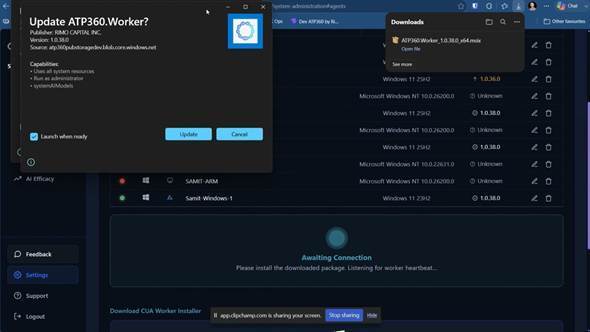
Figure 5 — The MSIX update prompt on the worker machine, showing the publisher and the version being installed.
For what the worker app itself shows on the device — connection state, active run and activity log — see The worker app on the device.
Checking a worker is ready
Back in Settings > CUA Workers, click Refresh. The worker should now show a green dot and the current agent version, and the counts at the top of the tab should reflect it. It is then selectable in Test Now for the people who can use it.
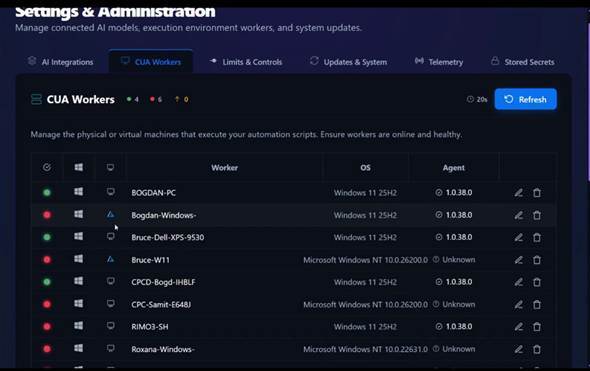
Figure 6 — After a refresh, the updated worker reports in as online and on the current agent version.
Related articles- Administration Guide – Overview
- The worker app on the device (Troubleshooting)
- Updates & System — the current worker version
- ATP360 Deployment Guide
- ATP360 Glossary — CUA, CUA worker, orchestrator, pairing key